Accounting
1. Overview
This manual explains how to use HuoPuo Accounting as a controlled financial backbone for daily accounting operations, reporting, and specialized accounting areas such as assets, costing, payroll visibility, and IFRS 16.
1.1 Added Value Compared to Basics
The added value of HuoPuo Accounting is not only that it performs standard accounting functions. Its real strength is that it extends accounting into a broader financial control environment, with additional operational, reporting, integration, and governance capabilities not usually available in ordinary accounting implementations.
1.1.1 User Experience and Role-Based Financial Navigation
1.1.1.1 Direct Hub-Based Financial Navigation
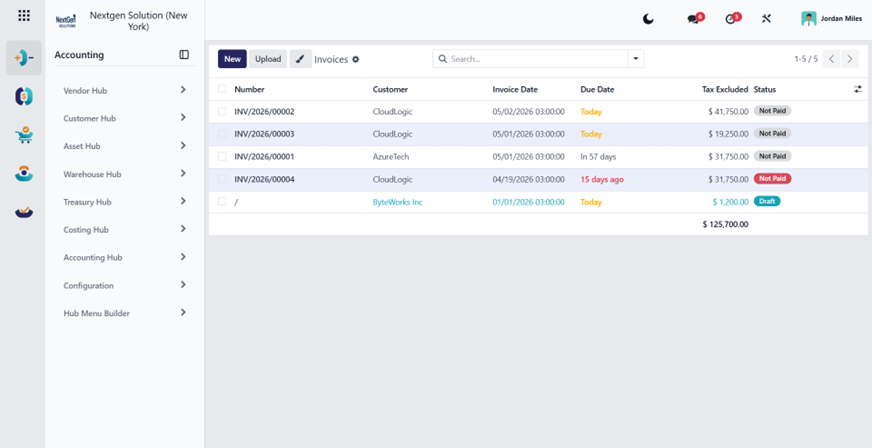
One important added value is the reorganized hub structure, which groups accounting work into operational areas such as:
- Vendor Hub.
- Customer Hub.
- Treasury Hub.
- Warehouse Hub.
- Costing Hub.
- Asset Hub.
- Payroll Hub.
- Accounting Hub.
This structure improves usability by allowing each finance role to work from a business-oriented menu instead of searching through a generic accounting menu.
It also improves adoption because users can access accounting functions based on their real daily responsibilities.
1.1.1.2 Enhanced Working Experience Inside the Hubs
The added value is not limited to the menu structure itself. It is also strengthened by the improved way users work inside these hubs.
This includes:
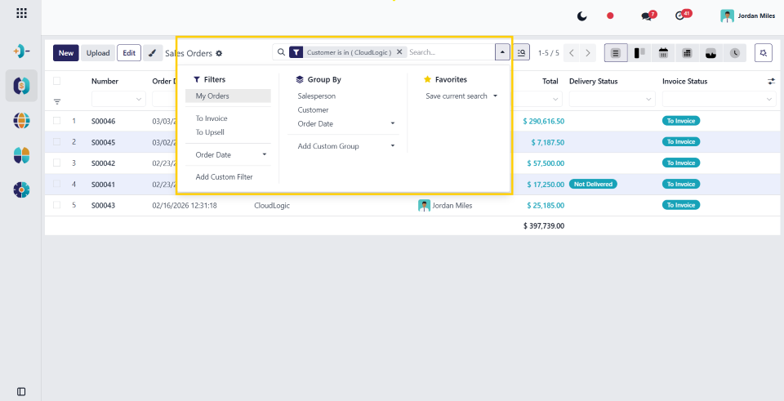
- smarter filtering and multi-criteria search,
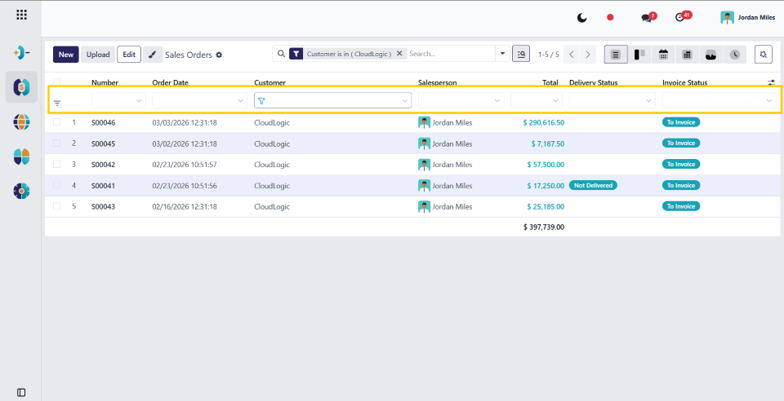
- column-level filters directly in list views,
- better control over visible columns,
- per-user view customization and saved preferences,
- Pagination that makes large accounting datasets easier to navigate in controlled pages,
- and a more practical way to review records without being overwhelmed by unnecessary information.
This means the system improves usability at two levels:
- first, by organizing accounting functions into role-based hubs,
- and second, by making the actual record review, filtering, navigation, and analysis inside those hubs faster and more manageable for daily work.
1.1.2 Multi-Currency, Exchange Rate Management, and Currency Translation (IAS 21 / ASC 830)
A major added value of HuoPuo Accounting is its stronger support for multi-currency control, reporting, and exchange-rate governance.
This is not limited to recording foreign-currency transactions only. It also improves how finance teams:
- review balances in different currencies,
- analyze partner positions in foreign currency,
- switch reporting views for management purposes,
- and understand currency impact across financial statements and audit reports.
In addition, the system provides stronger control over exchange-rate handling by supporting:
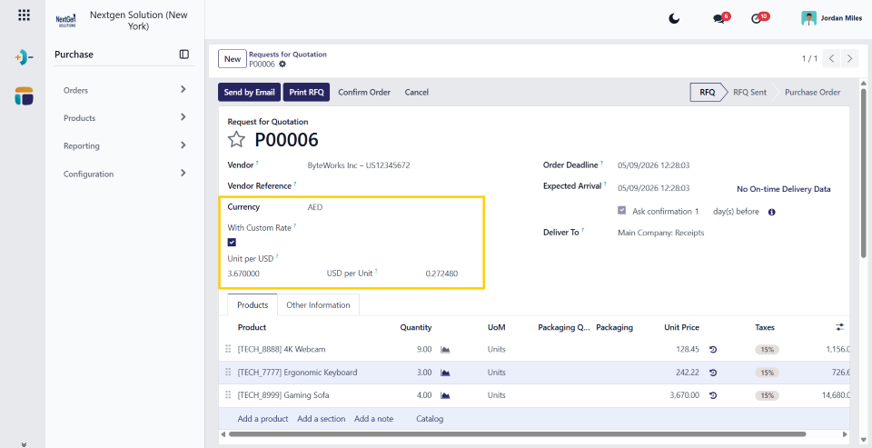
- rate management with date and time, not only date,
- multiple rate updates within the same day for high-fluctuation currencies,
- and custom exchange rates per operation where business or policy requirements make this necessary.
This creates added value for companies that operate across multiple currencies and need better reporting flexibility and stronger currency control than a standard accounting setup usually provides.
1.1.2.1 Multi-Currency Partner Ledger
This feature directly addresses a very common business need: users want to know amounts in the actual currency used with the customer or vendor, not only in the default or database currency.
HuoPuo Accounting provides stronger visibility for partner balances in foreign currency by extending partner ledger analysis beyond standard local-currency review.
This helps finance teams:
- monitor customer and vendor balances in transaction currency,
- review outstanding amounts with better currency clarity,
- support reconciliation and follow-up in foreign-currency environments,
- and improve audit and management visibility where partner-level foreign-currency analysis is required.
This is especially valuable for companies that sell, purchase, collect, or settle in more than one currency.
1.1.2.2 Multi-Currency Reports
HuoPuo Accounting also adds value by allowing broader financial reporting in different currencies. This responds to one of the most widely requested finance needs: the ability to see, compare, and review reports in multiple currencies instead of being limited to a single reporting view.
This improves the ability to:
- review financial statements in an alternate reporting currency,
- support management reporting needs,
- compare financial performance from a multi-currency perspective,
- and give decision-makers more flexible financial visibility.
This goes beyond simple transaction-currency handling and makes currency analysis more useful at the reporting level.
1.1.3 Financial Reporting, Presentation, and Comparative Analysis (IAS 1 / ASC Presentation Logic)
Another strong added value is the depth of reporting available inside the system.
The module does not stop at financial statements.
It also includes detailed support for:
- audit reports,
- comparison reporting,
- management reports,
- multi-currency reports,
- budgeting and analytic reporting,
- stock value visibility,
- loan analysis,
- depreciation schedules,
- payroll analysis,
- and lease analysis.
This gives the organization broader reporting coverage without depending only on basic accounting statements.
1.1.3.1 Multi-Ledger and Parallel Reporting Logic
HuoPuo Accounting includes support for multi-ledger style reporting and parallel financial views.
This is useful when the company needs:
- different reporting perspectives,
- management versus statutory visibility,
- or grouped versus filtered journal-based reporting logic.
This gives the finance team stronger flexibility in how financial data is reviewed and governed.
1.1.4 Treasury, Liability Management, and Settlement Control
HuoPuo Accounting includes more advanced treasury and payment capabilities than a standard accounting setup.
These include:
- batch payments,
- controlled partial settlement of prepayments,
- internal transfer control,
- portal-based invoice payment flow,
- advanced payment provider integration,
- and treasury-oriented reporting.
This improves the connection between accounting, collections, and payment execution.
1.1.4.1 Built-In Loan Management
A major added value is the inclusion of loan management as part of treasury operations.
This allows finance users to control:
- loan creation,
- amortization schedules,
- installment monitoring,
- settlement logic,
- and loan analysis reporting
inside the same accounting structure.
This is stronger than a standard accounting environment that only records manual journal entries for financing activities without dedicated workflow support.
1.1.4.2 Extended Payment Provider Framework
The system includes an expanded payment provider framework with support for multiple gateway integrations and a structured custom payment provider approach.
This creates added value because payment collection and financial flow can be connected more directly to the accounting environment, instead of being treated as a separate disconnected process.
1.1.5 Lease, Asset, and Specialized Accounting Treatment (IFRS 16 / ASC 842)
HuoPuo Accounting includes structured support for specialized accounting areas that go beyond ordinary accounting use.
This includes:
- fixed assets and depreciation tracking,
- IFRS 16 lease management,
- and broader asset-related financial control.
1.1.5.1 IFRS 16 Lease Accounting
HuoPuo Accounting includes structured IFRS 16 lease accounting support, which adds major value for organizations that manage leased assets.
This includes:
- lease asset setup,
- financial input handling,
- schedule generation,
- initial recognition,
- periodic journal processing,
- termination or retirement,
- and lease analysis reporting.
This transforms lease accounting from a manual or spreadsheet-driven process into a controlled system workflow.
1.1.6 Financial Operations and Core Accounting Coverage
HuoPuo Accounting goes beyond normal accounting entry and reporting by covering a wider range of financial control areas in one environment.
This includes:
- accounts payable and vendor payment operations,
- accounts receivable and collection follow-up,
- treasury operations, including loans, internal transfers, and batch payments,
- inventory accounting visibility and stock value reporting,
- costing and analytic accounting control,
- fixed assets and depreciation tracking,
- payroll accounting visibility,
- statutory and management reporting,
- IFRS 16 lease management,
- partial payment settlement handling,
- currency rates that can be updated multiple times per day for high-fluctuation currencies,
- and custom exchange rates per operation.
This creates a more complete financial operating environment rather than a narrow bookkeeping module.
1.1.7 Governance, Auditability, and Internal Financial Control
Because the system combines:
- structured hubs,
- deeper workflows,
- expanded reporting,
- lock-date controls,
- specialized accounting processes,
- and wider operational linkage,
it creates a stronger governance environment for finance teams.
This improves:
- audit readiness,
- internal control,
- process visibility,
- and financial accountability.
1.1.8 Compliance, E-Invoicing, and Regional Regulatory Readiness
HuoPuo Accounting includes support for specialized compliance-oriented features such as:
- Peppol e-invoicing attachment handling,
- XRechnung buyer reference injection,
- multi-region electronic invoicing support, covering frameworks and requirements across regions such as South America, SEPA Countries, and the Gulf Cooperation Council (GCC),
- and related localization or structured invoicing support.
This adds value for companies operating in environments where standard invoice generation is not enough for compliance or electronic exchange requirements.
1.1.9 Cross-Functional Financial Integration Across Operations
HuoPuo Accounting is designed to make accounting a real financial control layer behind operational processes.
This means the system connects:
- vendor bills to payment and reconciliation,
- customer invoices to collections and follow-up,
- stock movements to stock value visibility,
- payroll processing to accounting outputs,
- assets to depreciation and lease logic,
- and operational transactions to management and audit reporting.
This gives finance teams stronger control than a standard accounting implementation that focuses mainly on journal entry generation and basic reporting.
Key Takeaway
The added value of HuoPuo Accounting is not only that it performs accounting functions.
Its real value is that it expands accounting into a broader financial control environment that combines:
- role-based financial usability,
- stronger multi-currency and reporting intelligence,
- deeper treasury and liability management,
- specialized accounting treatment for leases, assets, and advanced financial processes,
- broader compliance and regulatory readiness,
- stronger governance and auditability,
- and tighter integration between financial control and day-to-day operations.
This makes it significantly stronger than an ordinary accounting implementation that is limited to basic posting, reconciliation, and standard reporting.
1.2 Business Value and Use Cases
HuoPuo Accounting is not just a bookkeeping interface. It is a structured financial control environment that connects operational transactions with journals, reports, controls, and audit traceability.
This module is mainly used by:
- Accountants.
- Finance managers.
- Treasury users.
- Billing and collection staff.
- Controllers and reporting users.
- Senior management who rely on financial visibility and compliance.
These users usually face several daily problems in financial operations, such as:
- Transactions being recorded late or inconsistently.
- Weak visibility on payables, receivables, treasury, and reconciliations.
- Difficulty connecting operational activities to financial impact.
- Delays in period close and reporting.
- Errors caused by scattered workflows between departments.
- Weak audit readiness due to incomplete controls or missing traceability.
HuoPuo Accounting helps solve these problems by providing:
- Control of accounts payable, receivable, treasury, and reconciliation in one environment.
- Direct connection between operations and financial results.
- Structured support for period closing, lock dates, tax processing, and audit readiness.
- Better visibility for management, controllers, and finance teams.
- Stronger traceability between source transactions and accounting outputs.
As a result, the module improves daily work by making finance operations:
- More controlled.
- More visible.
- More accurate.
- More auditable.
- Better connected to the rest of the business.
Real Business Use Cases
Use Case 1: Accounts Payable and Treasury Control.
Finance teams need to manage vendor bills, due dates, payments, and cash movement accurately.
Without a structured system, payments may be delayed, duplicated, or poorly tracked.
HuoPuo Accounting improves this by centralizing vendor liabilities, payment processing, reconciliation, and treasury visibility.
Use Case 2: Customer Billing and Collections.
Businesses need clear control over invoices, outstanding balances, collections, and follow-ups.
Without a structured accounting flow, customer balances become unclear, and collection efforts become reactive.
HuoPuo Accounting improves this by linking billing, collections, aging analysis, and reconciliation in one controlled flow.
Use Case 3: Financial Reporting and Audit Readiness.
Management and auditors require reliable balances, traceable entries, and properly structured reports.
Without controlled posting and financial discipline, reporting becomes slow, error-prone, and difficult to audit.
HuoPuo Accounting improves this by structuring journals, reports, lock dates, and traceable accounting records.
Use Case 4: Costing, Assets, and IFRS 16 Control.
Organizations often need visibility beyond standard accounting, including costing, fixed assets, and lease accounting.
Without an integrated accounting structure, these areas are often handled manually or in disconnected files.
HuoPuo Accounting improves this by bringing costing, asset management, and IFRS 16 processing into the same financial control environment.
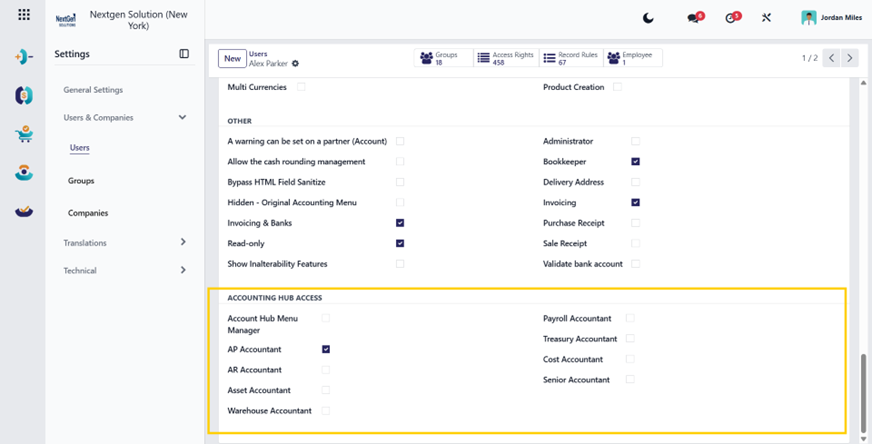
2. Users and Roles
Primary Build in Users
The following roles are built into the accounting environment from the beginning and are part of how the system is designed to be used. They are not only descriptive labels. In practice, these roles shape what each user normally works on, which hub they work from, and which accounting functions and access rights are most relevant to them.
-
Accounts Payable (AP) Team.
Uses the system for vendor bills, vendor credits, payment orders, and purchasing-related accounting follow-up. This role is mainly associated with the vendor and payable side of the accounting flow. -
Accounts Receivable (AR) Team.
Uses the system for customer invoices, credit memos, collection follow-ups, payment matching, and receivables control. This role is mainly associated with the customer and collection side of the accounting flow. -
Treasury Team.
Uses the system for cash and bank journals, bank statement import, reconciliation, internal transfers, batch payments, and loan-related treasury operations. This role is mainly associated with liquidity, settlement, and cash control. -
Asset Accounting Team.
Uses the system for fixed asset records, asset models, depreciation schedules, and asset journal monitoring. This role is mainly associated with long-term asset control and depreciation follow-up. -
Warehouse Accounting Team.
Uses the system for inventory adjustments, stock valuation visibility, inventory-related accounting review, and product accounting control. This role is mainly associated with the financial side of stock and warehouse activity. -
Costing Accounting Team.
Uses the system for landed costs, scraps, analytic accounts, analytic distribution, and costing-related reporting. This role is mainly associated with cost tracking and allocation control. -
Payroll Accounting Team.
Uses the system for payslips to pay, payroll accounting outputs, batch payroll follow-up, and payroll analysis reporting. This role is mainly associated with payroll-related accounting visibility and follow-up. -
Controllers and Finance Managers.
Use the system for closing periods, lock dates, financial statements, budgeting, multi-currency review, compliance control, and management-level reporting. This role is mainly associated with review, supervision, and financial governance. -
Auditors.
Use the system for general ledger review, trial balance analysis, journal audit, partner ledger review, aging analysis, and audit traceability. This role is mainly associated with verification, control, and audit review.
Supporting Users
-
Senior Management.
Uses the module mainly through reports, dashboards, and financial statements to review company performance and financial control status. -
Implementers / System Administrators.
Use the module for setup, configuration, permissions, integration support, and maintenance of specialized accounting structures.
Important Note
These roles are important because they are not only operational descriptions. They also influence how users interact with the accounting hubs and what level of access they are expected to have.
3. Key Concepts
This section covers the core accounting concepts that explain how HuoPuo Accounting works.
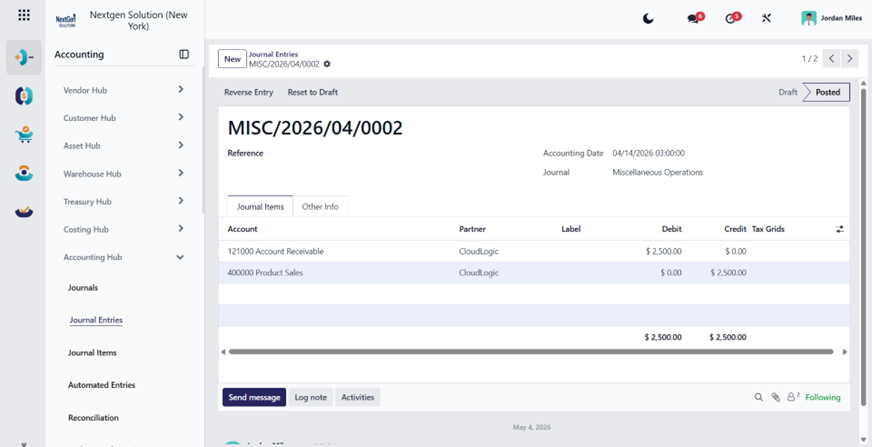
3.1 Double-Entry Accounting (System Behavior)
HuoPuo automatically generates journal entries behind operational transactions (customer invoices, vendor bills, POS, inventory valuation, expenses, etc.), so operational teams work on business documents while accounting remains consistent in the background.
3.2 Journals (Why they matter)
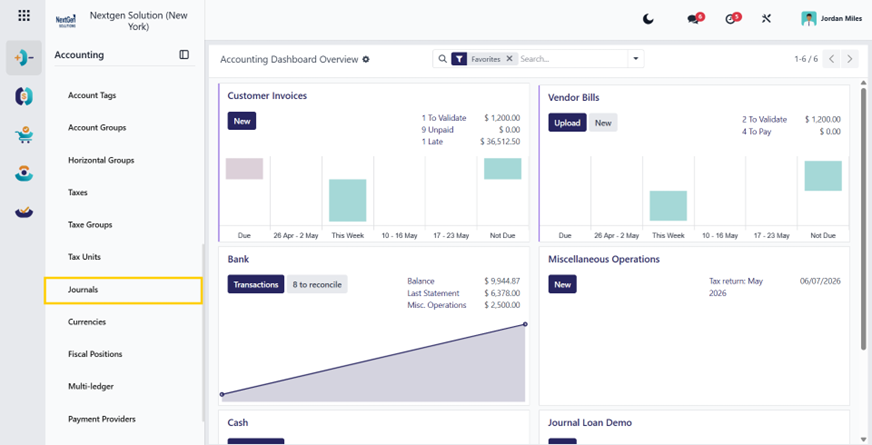
Journals are how transactions are categorized and posted (Sales/Purchase/Bank/Cash/Credit Card/Misc.). Multiple journals of the same type are possible to split business flows (e.g., B2B vs B2C sales).
Where in the HuoPuo menu:
Accounting → Configuration → Journals
Critical configuration: outstanding accounts for payment methods (Outstanding Receipts / Outstanding Payments) are configured on bank/cash journals.
3.3 Chart of Accounts (COA)
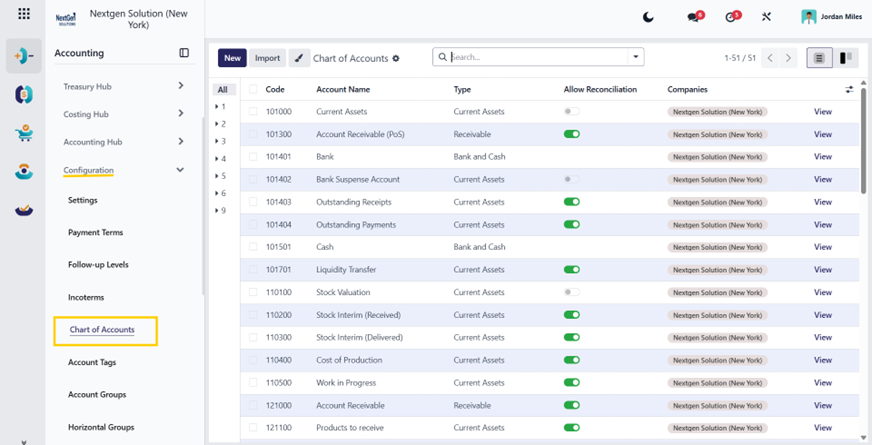
The COA is the backbone of reporting and posting. Creating an account requires at least a Code, Name, and Type. A key limitation: fiscal localization cannot be changed after posting entries (practically: decide localization early).
Where in the HuoPuo menu:
Accounting → Configuration → Chart of Accounts.
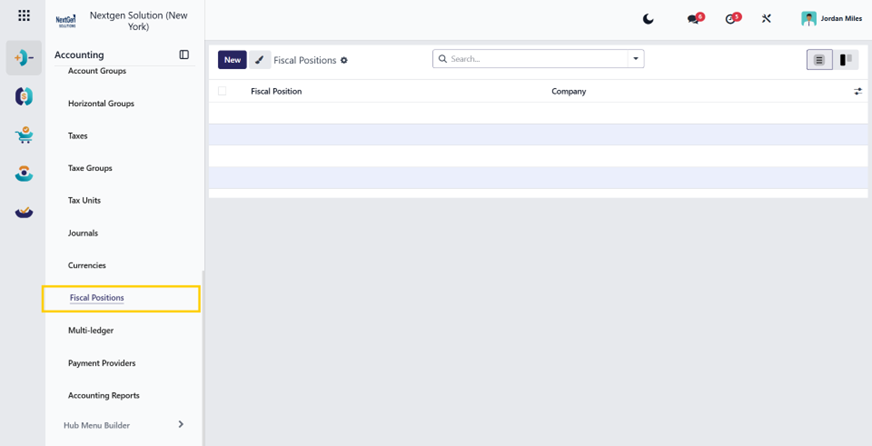
3.4 Fiscal Positions (Tax and Account Mapping)
Fiscal positions automate the mapping of taxes and accounts depending on partner location/business context. They can be applied automatically, manually, or assigned to partners.
Where in the HuoPuo menu:
Accounting → Configuration → Fiscal Positions.
4. Setup and Configuration
This section groups the setup and configuration content into one manual section
4.1 Navigation Model (Your Hub Menu)
HuoPuo reorganizes Accounting into the following hubs (examples shown as Hub → Group → Menu):
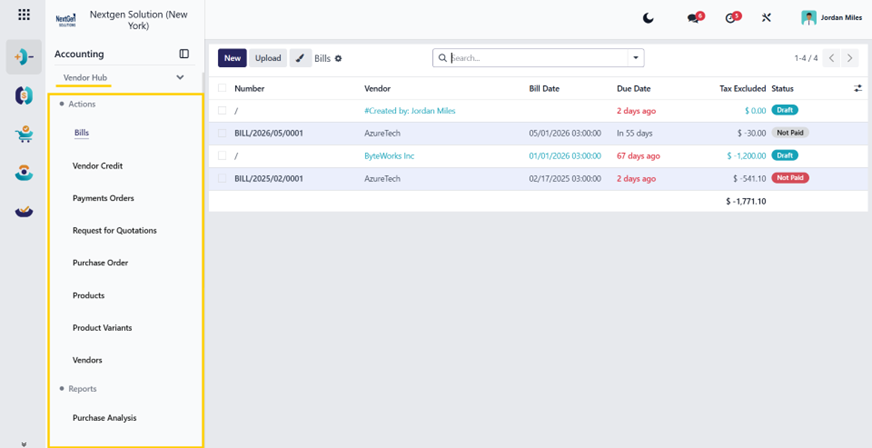
4.1.1 Vendor Hub
Actions: Bills / Vendor Credit / Payments Orders / RFQ / Purchase Order / Purchase Agreements / Products / Vendors
Reports: Purchase Analysis / Partner Ledger / Accounts Payable Aging
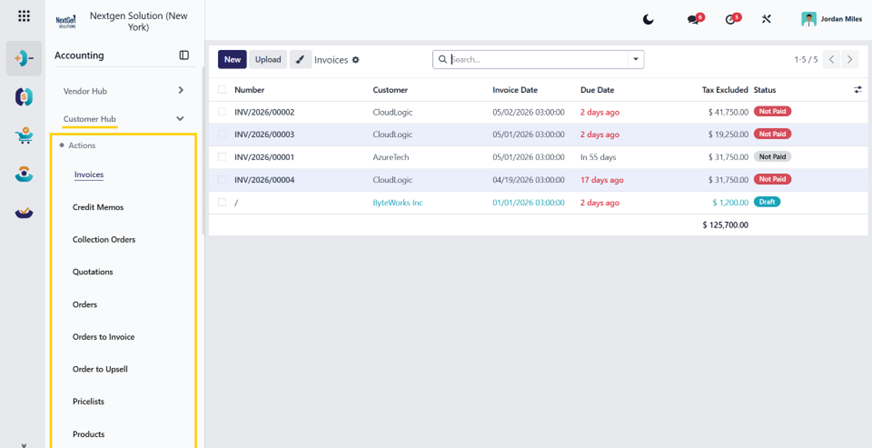
4.1.2 Customer Hub
Actions: Invoices / Credit Memos / Collection Orders / Quotations / Orders / Orders to Invoice / Upsell / Pricelists / Gift Cards & eWallet / Discount & Loyalty
Reports: Sales Analysis (and variants) / Invoice Analysis / Partner Ledger / Accounts Receivable Aging
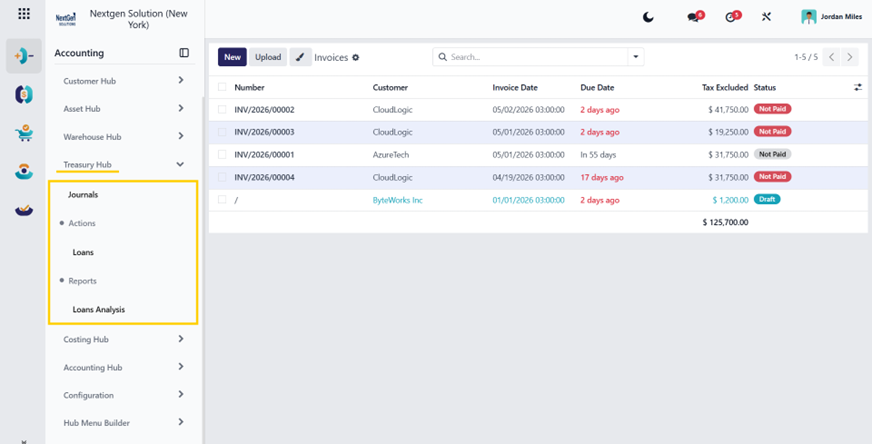
4.1.3 Treasury Hub
Journals: Cash & Bank Journals
Actions: Loans
Reports: Loans Analysis
4.1.4 Warehouse Hub
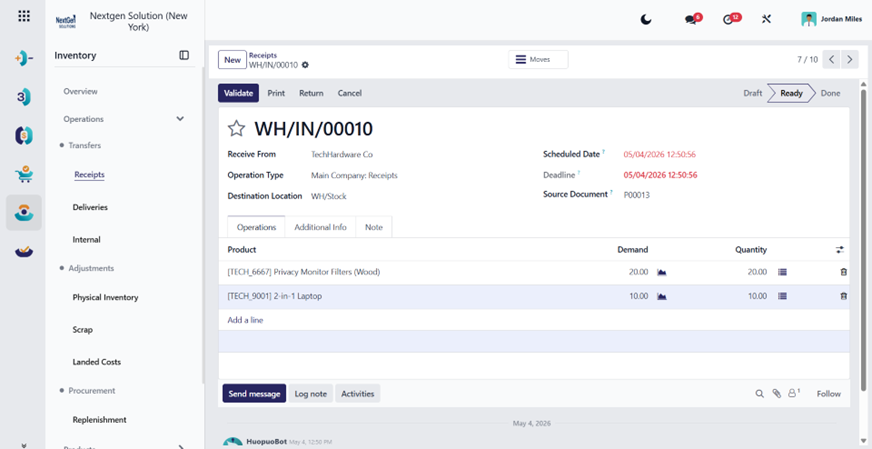
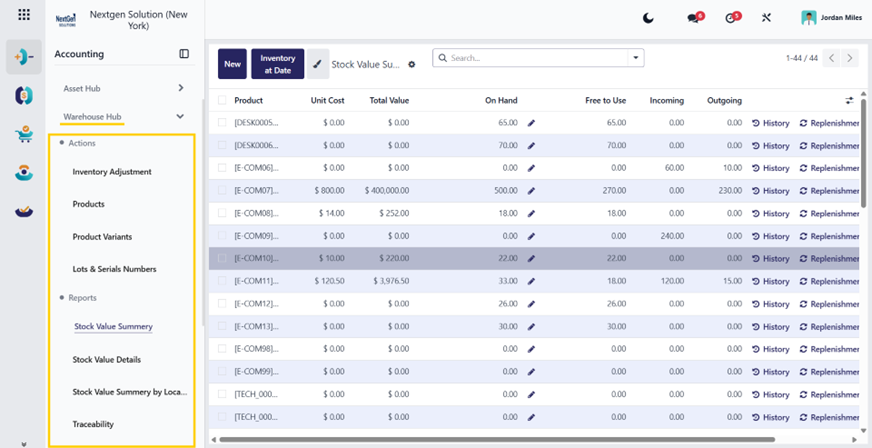
Actions: Inventory Adjustment / Products / Lots & Serials
Reports: Stock Value Summary / Stock Value Details / Value by Location / Traceability / Stock Movements / Performance
4.1.5 Costing Hub
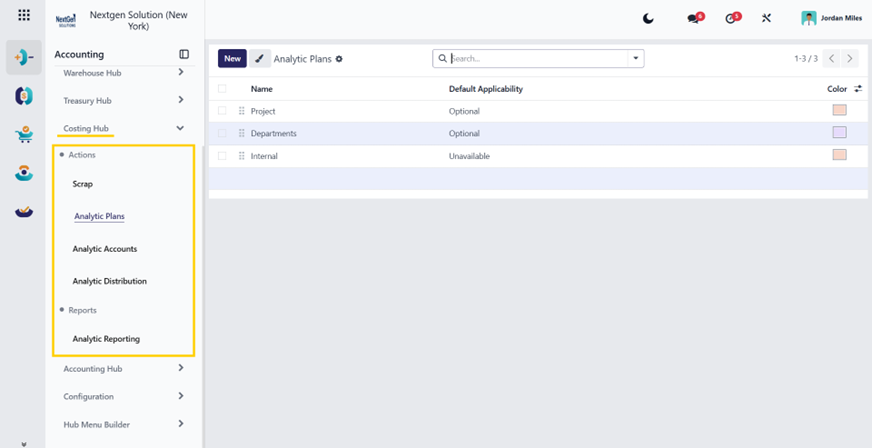
Actions: Landed Cost / Scrap / Analytic Plans / Analytic Accounts / Analytic Distribution
Reports: Analytic Reporting
4.1.6 Asset Hub
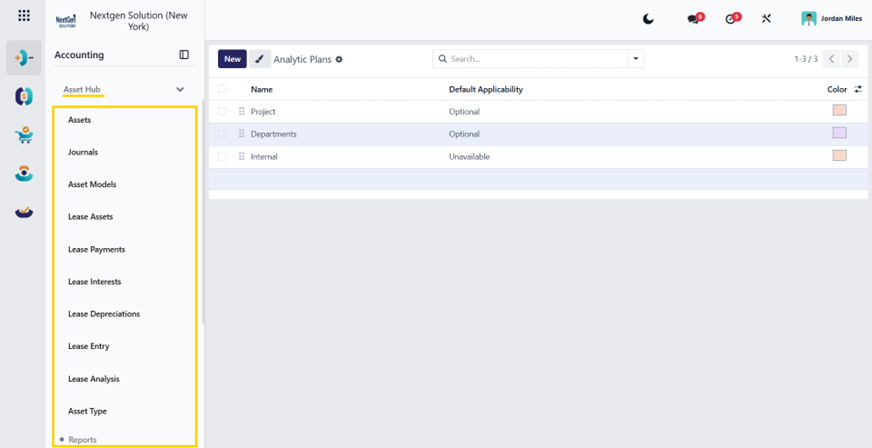
Actions: Assets / Journals / Asset Models
Reports: Depreciation Schedule
4.1.7 Payroll Hub
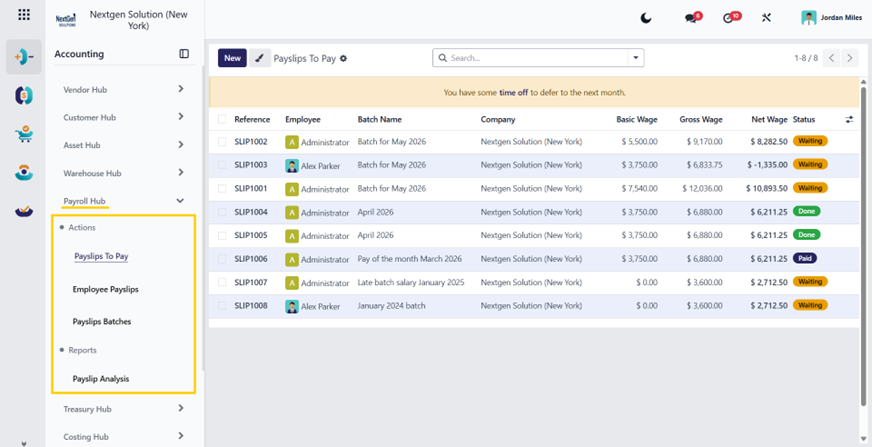
Actions: Pay slips to Pay / Employee Pay slips / Batches
Reports: Pay slip Analysis
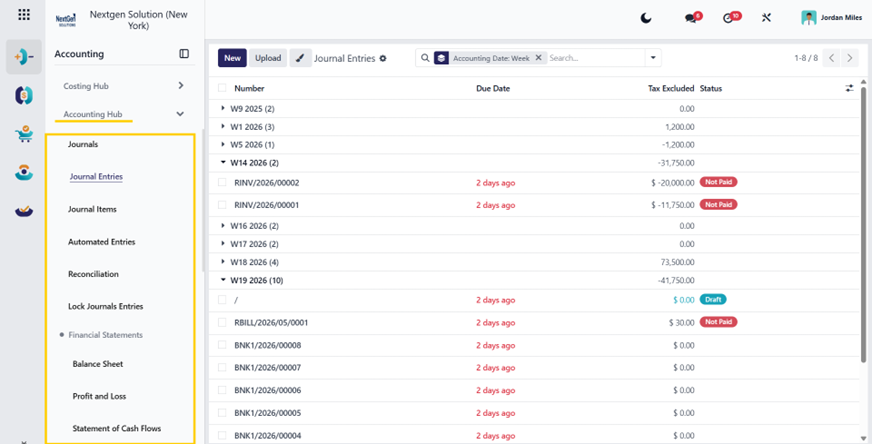
4.1.8 Accounting Hub
Actions: Journals dashboard / Journal Entries / Journal Items / Analytic Budget / Automated Entries / Reconciliation / Lock Journal Entries
Reports: Financial Statements / Audit Reports / Management
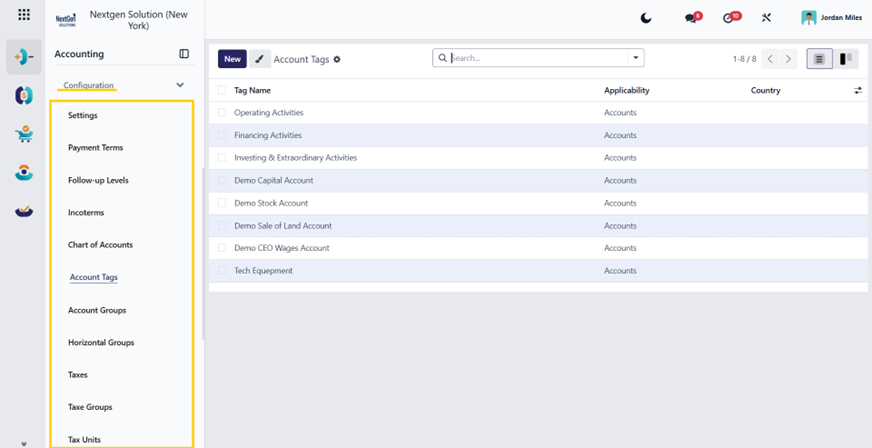
4.1.9 Configuration
Actions: Settings / Payment Terms / Follow-up Levels / Incoterms / Chart of Accounts / Taxes / Journals / Currencies / Fiscal Positions / Multi-ledger / Tax Groups / Tax Units / Account Tags / Account Groups / Horizontal Groups / Payment Providers / Accounting Reports
4.2 Configuration (Detailed Setup Guide)
This section explains each configuration item in your menu, what it controls, and what to verify.
4.2.1 Settings
Menu: Configuration → Settings
Use this to enable/disable major accounting capabilities and control fiscal period rules. The onboarding banner settings can also be modified later from Settings.
4.2.2 Payment Terms
Menu: Configuration → Payment Terms
Define standard payment conditions that drive invoice due dates (critical for follow-ups and aging accuracy).
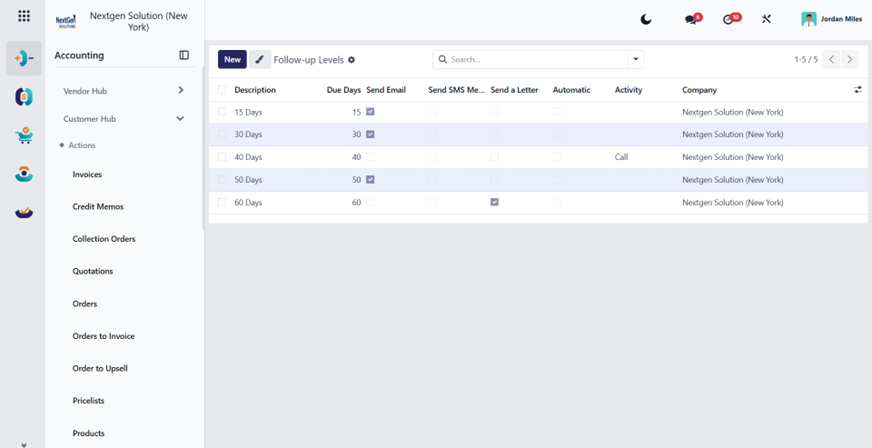
4.2.3 Follow-up Levels
Menu: Configuration → Follow-up Levels
Configure escalation actions (email/letter/SMS) and overdue day rules for collections.
4.2.4 Incoterms
Menu: Configuration → Incoterms
Trade terms used on commercial documents (invoicing/logistics).
4.2.5 Chart of Accounts
Menu: Configuration → Chart of Accounts
Create/maintain accounts; ensure at least one receivable and payable account remains active (common localization requirement).
Creating accounts requires Code/Name/Type; localization cannot be changed after postings.
4.2.6 Taxes, Tax Groups, Tax Units
Taxes: define sale/purchase taxes, computation rules.
Tax Groups: reporting grouping.
Tax Units: used for specific consolidation/compliance needs; HuoPuo tax unit documentation references assignment via fiscal position and company/partner configuration flows.
4.2.7 Journals
Menu: Configuration → Journals
Verify: journal types and short codes,
payment methods and outstanding accounts for bank/cash journals.
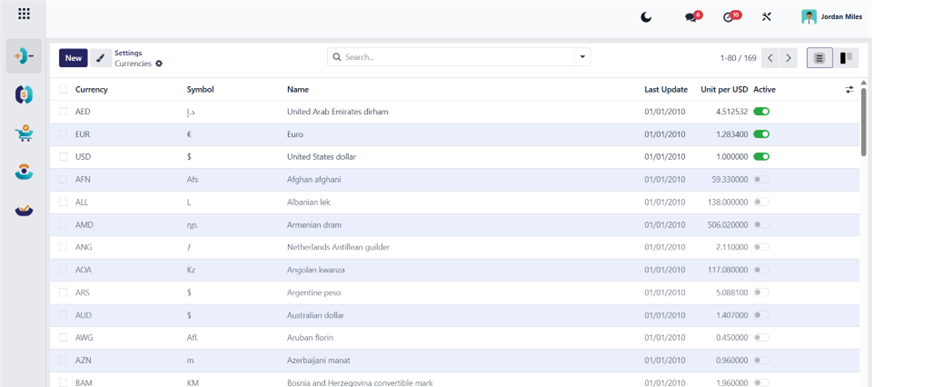
4.2.8 Currencies
Menu: Configuration → Currencies
Activate currencies and maintain rates to support multi-currency transactions and reporting.
4.2.9 Fiscal Positions
Menu: Configuration → Fiscal Positions
Automated tax/account mapping rules; can be auto-applied or assigned to partners.
4.2.10 Multi-ledger
Menu: Configuration → Multi-ledger
Create alternative ledgers for consolidated/parallel views by excluding journals.
4.2.11 Account Tags, Account Groups, Horizontal Groups
Used to structure financial reporting and group accounts in reports.
4.2.12 Payment Providers
Required for online invoice payment and any card/gateway integration. HuoPuo notes that online invoice payment requires payment providers to be correctly configured and activated.
Payment Providers Integrated:
- Adyen Payment Gateway
- PayPal Gateway
- Amazon Payment Services (APS)
- AsiaPay Gateway
- Authorize.Net Payment Gateway
- Buckaroo Payment Gateway
- Custom Payment Provider Framework
- Flutterwave Payment Gateway
- Mercado Pago Gateway
- Mollie Payment Gateway
- Nuvei Payment Gateway
- Razorpay Payment Gateway
- Demo / Sandbox Payment Provider (This should only be activated for testing purposes)
4.2.13 Accounting Reports
Maintain report templates (especially if you customize reporting layouts or add local statutory formats).
4.3 Option Activation Cautions and Business Impact
Before activating optional accounting settings, users should understand why the option is needed and what operational effect it creates.
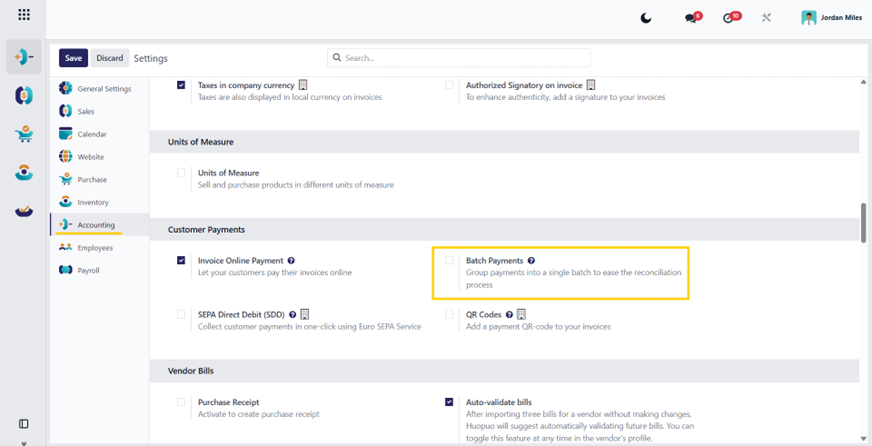
- Batch payment or treasury features should be activated when payment runs, and structured treasury control is required.
- Multi-currency and multi-ledger settings should only be activated when reporting or statutory requirements justify the added complexity.
- Asset and IFRS 16 features should be activated only when the finance team has the accounting governance to operate them correctly.
- Payment provider activation must be aligned with treasury, customer payment collection, and technical readiness.
5. Section per Role
This section preserves the hub workflows and playbooks while placing them under a clean operational heading.
5.1 Vendor Hub (Accounts Payable)
Summary (What this hub solves)
Vendor Hub centralizes AP actions and AP reporting:
- Capture supplier bills and refunds.
- Prepare outbound payments (payment orders, batch payments if enabled).
- Link purchasing flow (RFQ → PO → receiving) to payables.
- AP reporting: Partner Ledger and Payables Aging.
(Menu mapping is Vendor Hub → Actions / Reports.)
5.1.A Workflow: Vendor Bill → Payment → Reconciliation
Audience: AP clerks, AP lead, and finance managers.
How to use (clicking):
- Vendor Hub → Actions → Bills.
- Vendor Hub → Actions → Payments Orders.
- Accounting Hub → Reconciliation (bank/cash matching).
- Vendor Hub → Reports → Accounts Payable Aging / Partner Ledger.
Process steps
Create the vendor bill
Vendor Hub → Actions → Bills
Create a bill, select a vendor, dates, products/services, and taxes.
Validate / Post
Posting creates journal entries (AP liability + expense/stock accounts).
Create payment
Vendor Hub → Actions → Payments Orders (outbound payments)
Reconcile payment
When the bank statement is imported/synced, reconcile the bank transaction against the payment using the reconciliation process.
Key configuration needed
- Journals properly configured, especially bank journal payment methods and outstanding accounts.
- Vendors set with correct payable accounts and tax settings (often via fiscal position).
- Taxes configured in Configuration Hub → Taxes.
- Optional: Batch payments are enabled in Settings if you use pay runs (see Treasury section).
5.1.B AP Reporting (Vendor Hub → Reports)
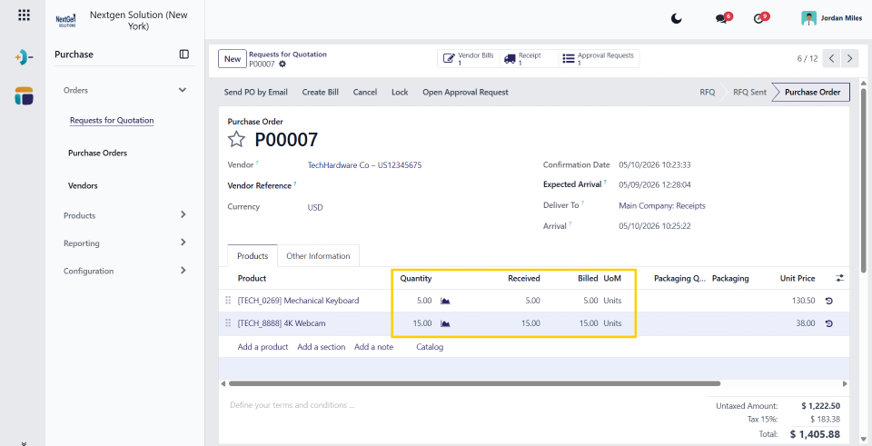
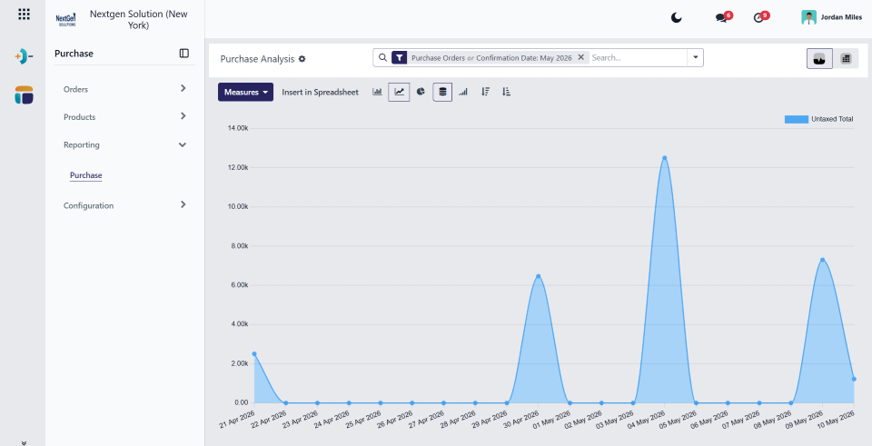
Purchase Analysis
Used to analyze procurement performance (graph/pivot).
Partner Ledger
Detailed AP movement per supplier, useful for audit and dispute resolution.
Accounts Payable Aging
Aging bucket report for payables; used for cash planning and vendor management.
5.1.C Vendor Hub — Deep Guide
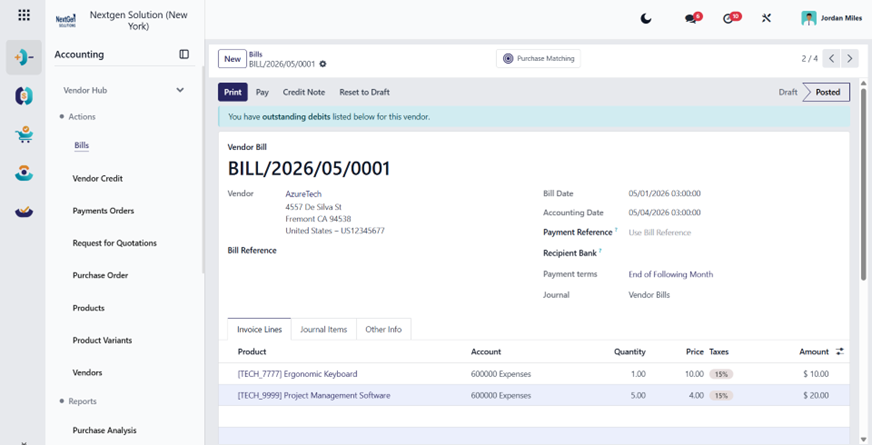
5.1.C1 Vendor Hub → Actions → Bills
Purpose
Record supplier invoices (AP), create payable balance, and post expenses/stock valuation.
When to use
- Supplier invoice received.
- Bills created from PO.
Step-by-step (fields to fill)
Header / Main fields
Vendor
Select supplier (must exist in the Vendors list).
Bill Date
Issuance date on vendor document.
Accounting Date
Posting date in accounting (can differ from bill date for backdating or period close).
Due Date / Payment Terms (critical)
Controls when it becomes payable; impacts AP aging and cash planning.
Journal
Purchase journal auto-set, but can be changed if needed (use the correct company/journal).
Payment Reference (or Memo/reference)
Used later when reconciling/communicating payment; memo updates when payment is registered.
Invoice Lines tab
- Product: Choose product/service; ensure correct accounts/taxes.
- Quantity.
- Unit Price.
- Taxes (if applicable).
- Optional: Analytic Distribution (if costing/analytics is used) — see Costing section.
Posting
Click Post/Confirm (becomes posted). (In the PO workflow, the bill is created from the PO and then confirmed.
Posting impact (what happens)
Creates journal entry:
- Debit: Expense/Stock accounts.
- Credit: Payable account for vendor.
Common mistakes
- Missing due date/payment terms → aging/reporting issues (and may trigger payable due-date consistency checks in some contexts).
- Wrong Accounting Date during month-end (posts into the wrong period).
- Wrong taxes → wrong Tax Return totals.
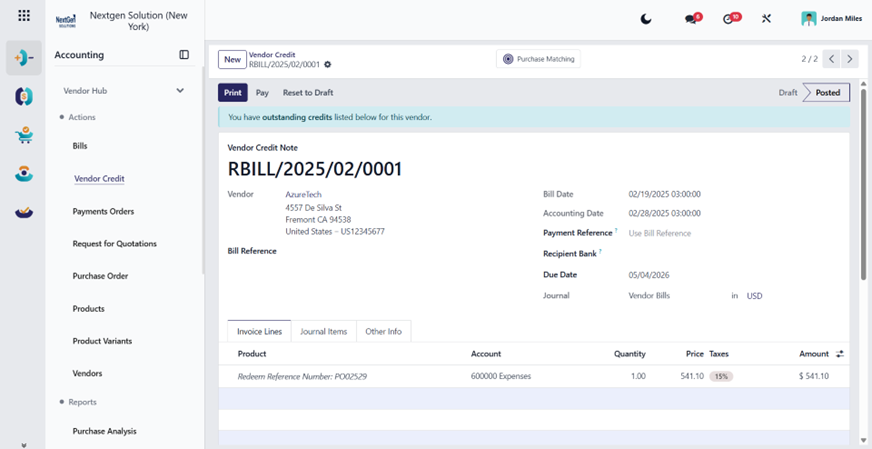
5.1.C2 Vendor Hub → Actions → Vendor Credit
Purpose
Record vendor refunds/credits (AP reduction).
Step-by-step (fields)
Same as Bills, but:
- Ensure it is a Vendor Credit type (in_refund).
- Use correct negative quantities/credit line logic based on your practice.
- Post and then reconcile against open bills (or request a cash refund).
5.1.C3 Vendor Hub → Actions → Payments Orders (Outbound Payments)
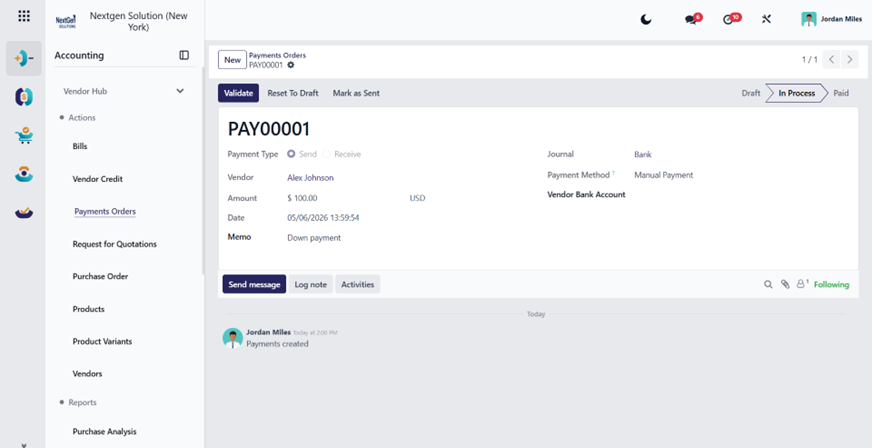
Purpose
Create/track outbound payments to suppliers.
Step-by-step (fields to fill)
- Payment Type: Outbound (default in your menu context).
- Partner Type: Supplier.
- Vendor: select supplier.
- Amount: amount to pay.
- Payment Date: execution date.
- Journal: choose Bank/Cash journal.
- Method: choose payment method (bank transfer/check, etc.).
Best practice
If you import bank statements, reconcile the bank transaction to the payment (see Reconciliation section).
5.1.C4 Vendor Hub → Reports → Accounts Payable Aging
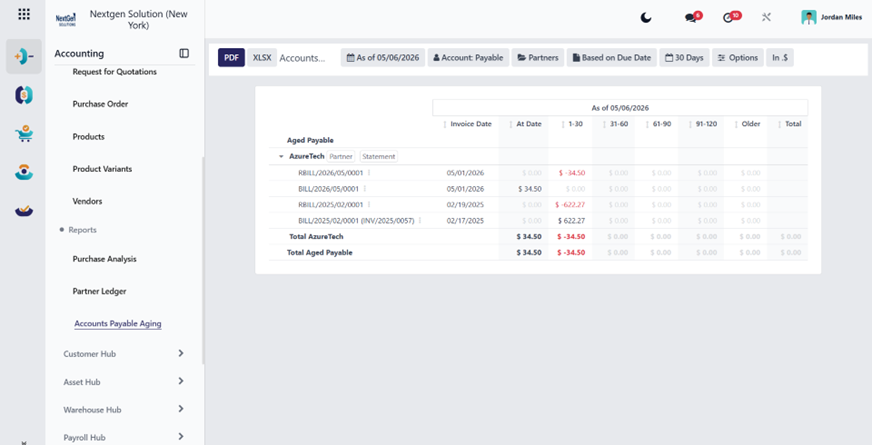
Purpose
Identify overdue supplier liabilities by bucket.
How to use (filters that matter)
- As of date (end date).
- Company.
- Posted entries only.
- Optional: Partner filter for vendor statement matching.
Common mistakes
- Running aging “today” during close without using “As of last day of month.”
- Including draft entries.
5.2 Customer Hub (Accounts Receivable)
Summary (What this hub solves)
Customer Hub centralizes AR:
- Issue invoices and credit memos.
- Track inbound collections.
- Follow the AR pipeline from sales (quotations/orders → invoices).
- Monitor AR risk through aging + follow-ups.
5.2.A Workflow: Sales Order → Invoice → Collection → Reconciliation
Audience: AR clerks, billing team, sales admin, and finance managers.
How to use (clicking):
- Customer Hub → Actions → Orders to Invoice.
- Customer Hub → Actions → Invoices.
- Customer Hub → Actions → Collection Orders.
- Accounting → Reconciliation.
- Customer Hub → Reports → Accounts Receivable Aging / Partner Ledger.
Process steps
Identify orders to invoice
Customer Hub → Actions → Orders to Invoice
Create and validate an invoice
Customer Hub → Actions → Invoices
Register customer payment
Customer Hub → Actions → Collection Orders (inbound payments)
Bank reconciliation
Treasury/Accounting reconciliation matches bank statement lines to open invoices/payments.
Reconciliation can use matching, manual operations, batch payments, or reconciliation models, depending on your setup.
5.2.B Payment Follow-Ups (Collections / Dunning)
What it does:
Follow-up messages can be sent to customers when invoices are overdue; reminders can be sent by email, post, or SMS based on follow-up levels and overdue days.
Where to configure it (HuoPuo menu):
Configuration Hub → Follow-up Levels.
Configuration checklist
- Define follow-up levels: number of days overdue, actions (email/letter/SMS), templates, and escalation strategy.
- Define payment terms (Configuration Hub → Payment Terms) to ensure due dates are calculated correctly.
5.2.C AR Reporting (Customer Hub → Reports)
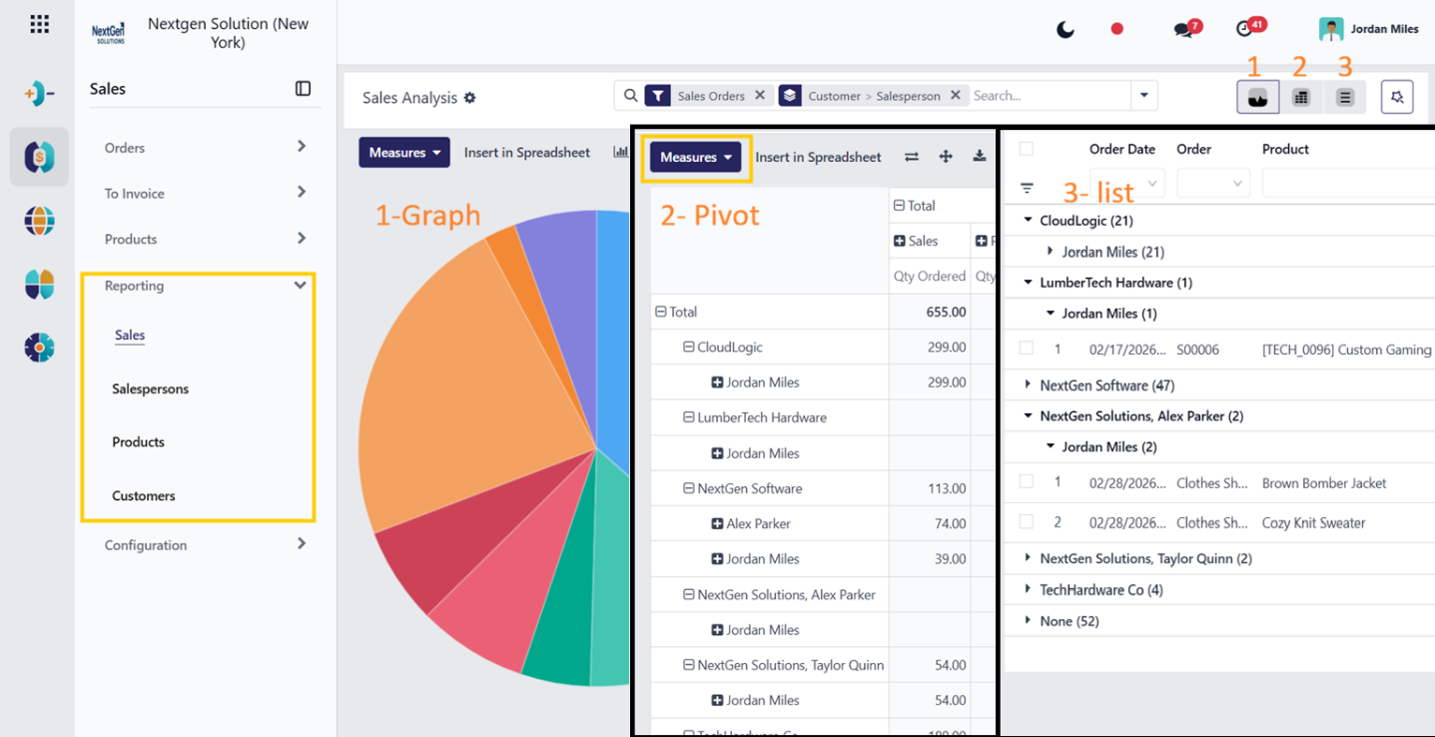
- Sales Analysis (and variants by Salesperson/Product/Customer).
- Invoice Analysis.
- Partner Ledger.
- Accounts Receivable Aging.
These reports are used for AR monitoring, billing volume analysis, and audit support.
5.2.D Customer Hub — Deep Guide
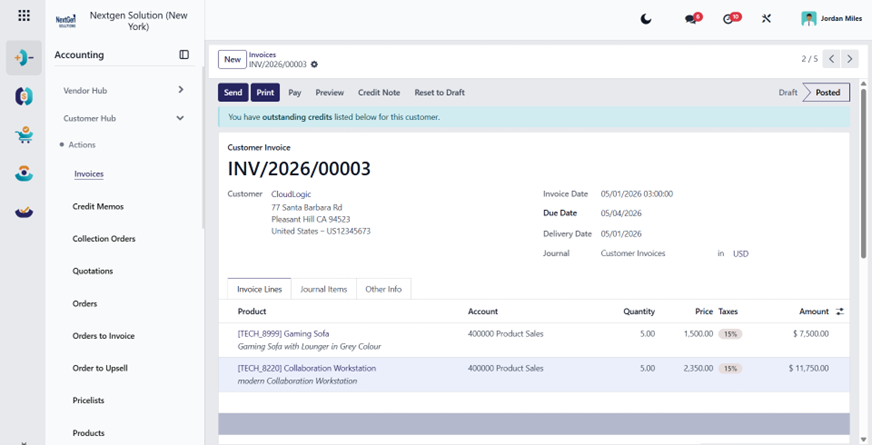
5.2.D1 Customer Hub → Actions → Invoices
Purpose
Issue AR invoices to customers and create receivable balance.
Step-by-step (fields to fill)
Header / Main fields
- Customer.
- Invoice Date.
- Due Date or Payment Terms: Defines when the customer must pay.
- Journal: Auto-set; change only if needed.
- Currency: If different from the company currency, HuoPuo displays the exchange rate.
Invoice Lines tab
- Product.
- Quantity.
- Unit Price.
- Taxes.
Post
Post invoice to create accounting entry.
Posting impact
- Debit: Receivable.
- Credit: Revenue (and tax lines).
Common mistakes
- Forgetting payment terms → incorrect due date and aging behavior.
- Wrong taxes → wrong tax return and customer totals.
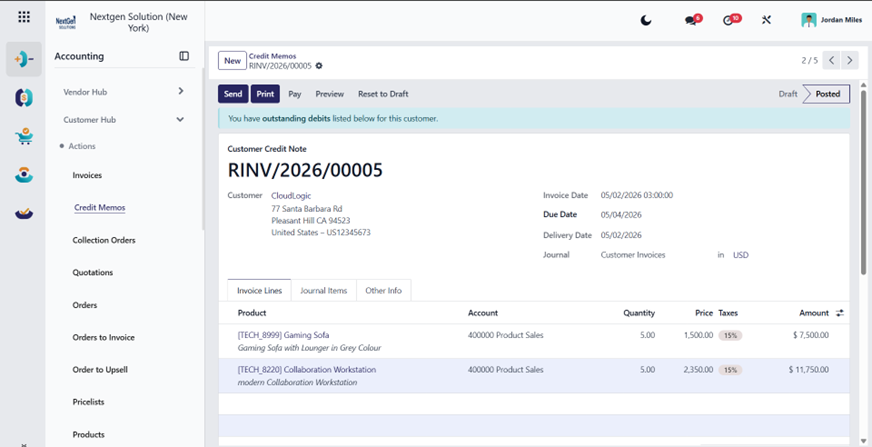
5.2.D2 Customer Hub → Actions → Credit Memos
Purpose
Customer refunds or invoice corrections.
Step-by-step
Same pattern as invoice, but ensure it’s a credit memo (out_refund). Post, then reconcile with the original invoice or pay a refund.
5.2.D3 Customer Hub → Actions → Collection Orders (Inbound Payments)
Purpose
Record incoming customer payments.
Step-by-step (fields)
- Payment Type: Inbound.
- Customer.
- Amount.
- Payment Date.
- Journal (Bank/Cash).
- Post payment.
Then reconcile with the invoice:
Either from the invoice payment widget, or from bank reconciliation (recommended if bank import exists).
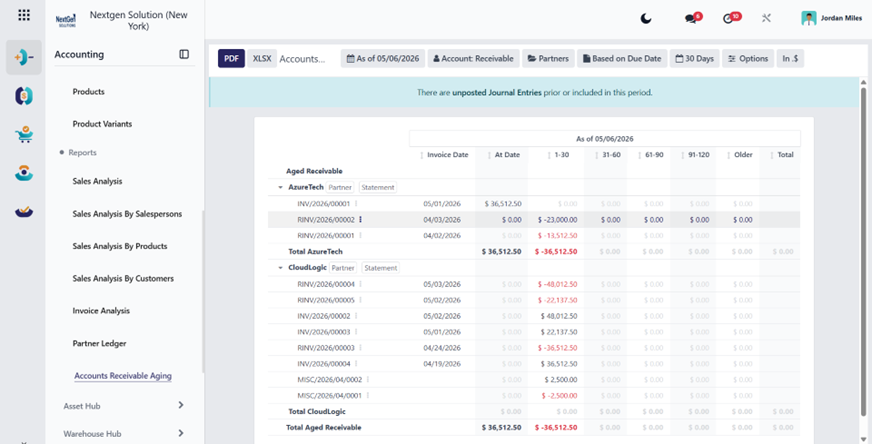
5.2.D4 Customer Hub → Reports → Accounts Receivable Aging
Purpose
Prioritization of collections.
How to use
- Use the as-of date and aging buckets.
- Focus on overdue buckets and high balances.
- Drill down to the partner ledger when disputes exist.
5.3 Treasury Hub (Cash & Banks, Loans)
Summary (What this hub solves)
Treasury Hub is built for:
- Bank/cash journal management.
- Importing/synchronizing statements and reconciling.
- Running pay cycles (batch payments).
- Handling internal transfers between bank accounts.
- Loans management + analysis.
5.3.A Workflow: Import Bank Transactions → Reconcile
Audience: Treasury accountants, finance managers.
How to use (clicking):
- Accounting Hub → Journals (dashboard).
- Accounting Hub → Reconciliation (or bank journal reconciliation view).
- Treasury Hub → Journals → Cash & Bank Journals (as configured).
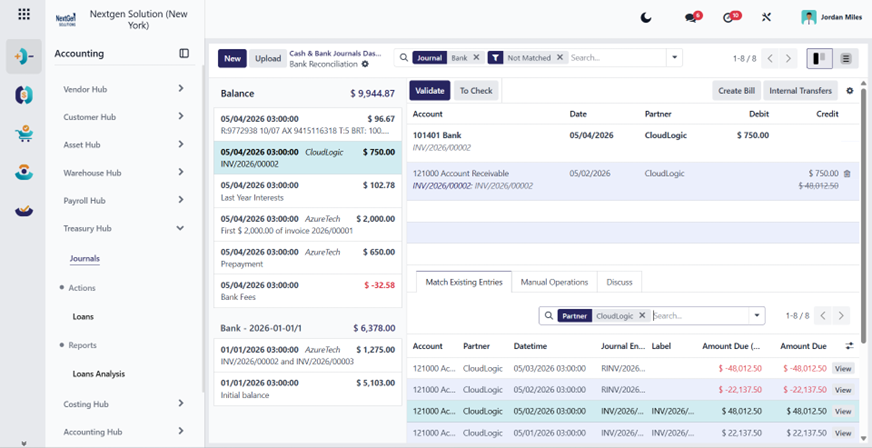
Reconciliation steps
- Select an unmatched bank transaction.
- Define counterpart:
- match existing entries,
- manual operations,
- batch payments,
- reconciliation model buttons (if configured).
5.3.B Internal Transfers (Bank → Bank)
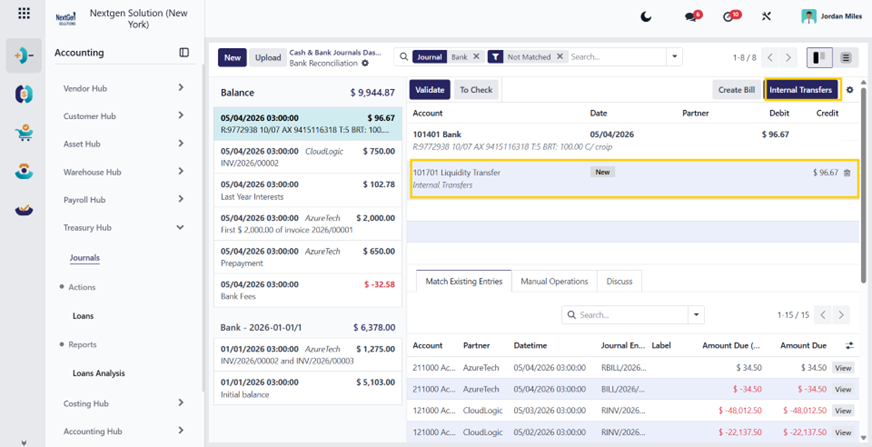
When money is moved from one bank/cash account to another, it typically appears as two transactions. HuoPuo supports handling this by reconciling using an Internal Transfers reconciliation model that posts against an internal transfer account.
Practical steps
- Ensure both bank journals exist and are correctly configured.
- Import both sides of the transfer (or sync).
- Reconcile each side using the internal transfer model so both journals clear correctly.
5.3.C Batch Payments (Pay Runs)
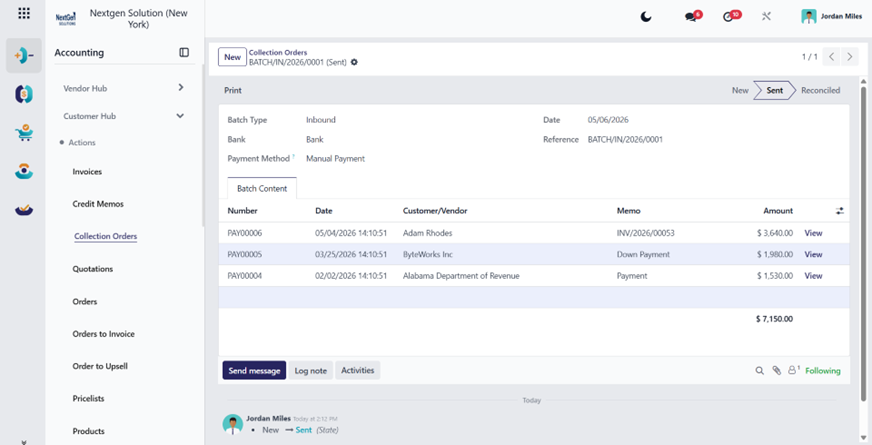
Batch payments are enabled from the Accounting settings and allow processing multiple payments together (commonly AP pay runs).
Where (HuoPuo menu):
- Configuration Hub → Settings (enable batch payments if used).
- Vendor Hub → Actions → Payments Orders (prepare payments).
5.3.D Online Invoice Payments (Customer Portal Payment)
Invoice online payment can be enabled in settings; it requires payment providers to be configured and activated.
Where (HuoPuo menu):
- Configuration → Settings (enable invoice online payment).
- Configuration → Payment Providers (configure providers).
5.3.E Loans
Where (HuoPuo menu):
- Treasury Hub → Actions → Loans.
- Treasury Hub → Reports → Loans Analysis.
Purpose
HuoPuo Loans Management provides a central register of company loans and creates a forecastable view of upcoming due dates (useful for treasury planning and cash forecasting). The module supports:
- Creating a loan with an amortization schedule (imported, computed, or manual).
- Automatically generating monthly interest and principal accounting entries.
- Maintaining clean classification between Long-term and Short-term loan liabilities.
- Providing a pivot report that summarizes principal/interest per year (Loans Analysis).
5.3.E1 Key Concepts You Must Understand
5.3.E1.1 The Amortization Schedule is the “source of truth.”
A loan is basically:
- Loan header (loan info, accounts, settings).
- Amortization schedule lines (each installment).
HuoPuo requires three mandatory fields per schedule line:
- Date.
- Principal.
- Interest.
If totals do not match, HuoPuo flags it (Amount Borrowed, Interest, Duration fields can turn red if the sum of schedule lines doesn’t match).
5.3.E1.2 Long-term vs Short-term classification
HuoPuo’s built-in mechanism keeps your liability classification correct by:
- Holding the loan in a Long-term account (balance sheet).
- Reclassifying the next 12 months of principal into a Short-term account (also balance sheet).
This is crucial for:
- Correct Balance Sheet presentation.
- Correct cash forecast and current liabilities view.
5.3.E2 Prerequisites / Configuration Checklist (Before Creating Loans)
This part prevents 90% of loan mistakes.
5.3.E2.1 Required accounting accounts (recommended structure)
You should define and standardize these accounts:
Liability accounts
- Loan Liability – Long-Term (Balance Sheet).
- Loan Liability – Short-Term (Balance Sheet; type often Payable/Current Liabilities).
Expense account
- Interest Expense (Profit & Loss).
Bank journal
- A Bank journal that receives loan disbursement and later pays installments.
HuoPuo’s loan entries mechanism assumes the borrowed money is received in a bank account, then transferred to a long-term account defined in the loan settings.
5.3.E3 Create a New Loan (Treasury Hub → Actions → Loans)
5.3.E3.1 Navigation
Treasury Hub → Actions → Loans → Create
5.3.E3.2 Loan Form — What fields to fill (Step-by-Step)
Field names may differ slightly depending on your installed Loan module UI, but the workflow and required schedule fields match.
Step A — Loan Identification
Fill:
- Loan Name / Reference.
- Example: “Bank Loan – Branch A – 2026”.
- Company.
- Lender / Bank (partner).
- Optional: Notes/contract reference.
Step B — Financial Terms
Fill:
- Amount Borrowed.
- Duration (months/periods).
- Interest (rate or total, depending on module).
- Optional: currency (if loan in foreign currency).
Step C — Loan Settings (critical)
In the Loan Settings tab, set:
- Long-term Account (liability).
- Short-term Account (liability due within 12 months).
- Interest Expense Account.
- Journal for posting entries (depends on module settings).
Why this matters: When the loan is validated, HuoPuo uses these accounts to generate the automated entries and reclassification mechanism.
5.3.E3.3 Create the Amortization Schedule (3 ways)
HuoPuo provides three supported methods:
Option 1 — Import schedule
Use when the bank provides an official amortization file.
Option 2 — Compute schedule automatically
Fill the loan inputs (Amount Borrowed, Duration, Interest, etc.), then click Compute.
Option 3 — Manual schedule entry
Manually add lines.
In all cases, every installment line MUST have:
- Date.
- Principal.
- Interest.
5.3.E3.4 Validate / Confirm the Loan
After the schedule is ready and totals match:
- Click Validate / Confirm (wording depends on your module).
At this stage, HuoPuo will start generating the automated accounting mechanism described below.
5.3.E4 Loan Entries Mechanism (What HuoPuo Posts Automatically)
This is the most important part for accountants.
5.3.E4.1 Initial disbursement handling
When the loan money arrives in the bank, HuoPuo expects it to be transferred into the Long-term account defined in Loan Settings.
Practical interpretation:
- Bank account reflects actual cash received.
- Long-term loan liability reflects the obligation.
5.3.E4.2 For EACH amortization line, HuoPuo creates 3 entries
For every scheduled installment, HuoPuo automatically creates:
Entry 1 — Payment entry (on the same date)
- Debit: principal amount → Long-term account.
- Debit: interest amount → Interest expense account.
- Credit: total payment amount → Short-term account.
Explanation: A short-term account represents what the bank will withdraw.
Entry 2 — Reclassification entry (same date)
- Debit: sum of principal amounts for the next 12 months → Long-term account.
- Credit: sum of principal amounts for the next 12 months → Short-term account.
Entry 3 — Reversal entry (next day)
- Reverse the reclassification entry automatically.
Result: month after month, the short-term account remains updated with the current due amounts for the next 12 months.
5.3.E5 Daily Operations: Paying Installments & Reconciliation
5.3.E5.1 Best practice workflow
- Loan creates scheduled entries.
- Bank withdraws payment.
- You import/sync the bank statement and reconcile the withdrawal against the loan payment posting.
Outcome:
- Bank journal stays clean.
- Loan liability and interest expense stay accurate.
- Cash forecast remains consistent.
5.3.E6 Closing a Loan (Normal End or Early Settlement)
5.3.E6.1 Automatic closure
By default, a loan closes automatically when its last payment entry is posted.
5.3.E6.2 Manual close (Early payoff)
If the loan is settled early:
- Click Close.
- Wizard asks: “Close from which date?”
- All draft entries after that date are deleted.
5.3.E7 Cancel a Loan (Important Warning)
A loan can be cancelled.
If cancelled, all entries are deleted even if already posted.
Governance recommendation:
Restrict cancellation permission to senior finance admins only.
5.3.E8 Loans Analysis Report (Treasury Hub → Reports → Loans Analysis)
5.3.E8.1 Purpose
A pivot report view summarizing ongoing loans.
5.3.E8.2 Navigation (HuoPuo)
Treasury Hub → Reports → Loans Analysis
5.3.E8.3 What the report shows
By default, it shows:
- Principal.
- Interest.
- Total payment.
grouped by year across the loan duration.
5.3.E8.4 How to use (best practice)
Use pivot controls to:
- Group by Loan / Company / Year / Month.
- Compare interest cost trends.
- Forecast cash payments for future periods.
Recommended pivot views:
- By Year → management forecast.
- By Month → treasury cash planning.
- By Loan → bank covenant monitoring.
- By Company → multi-company consolidated treasury overview.
5.3.E9 Common Issues & Fixes (Real-world)
Issue A — Schedule totals mismatch.
Symptoms:
Amount Borrowed / Interest / Duration fields show red.
Cause:
Schedule lines don’t sum up to the declared totals.
Fix:
Recompute schedule or correct manual lines (principal/interest totals).
Issue B — Wrong short-term vs long-term balances
Cause:
Incorrect long-term or short-term accounts are configured.
Fix:
Correct accounts in Loan Settings and regenerate future entries (policy dependent).
Issue C — Bank reconciliation doesn’t match loan payment
Cause:
The bank statement line amount differs from scheduled payment.
Fix:
Check bank fees, rounding, or interest changes; adjust schedule if bank changed terms.
5.3.E10 Internal Policy Recommendations (HuoPuo Standard)
To keep loans clean and audit-ready:
- Standardize a Loan account set (long-term/short-term/interest/journal).
- Require schedule approval before validation.
- Month-end checklist includes:
- Loans Analysis review.
- Interest expense reasonability check.
- Reconcile bank withdrawals.
- Restrict “Cancel loan” to CFO/Head Accountant only (deletes posted entries). Top of Form
- Bottom of Form
5.4 Warehouse Hub (Inventory Accounting & Valuation Visibility)
Summary
Warehouse Hub supports accounting visibility for stock:
- Inventory adjustment (physical inventory).
- Valuation and traceability reporting.
- Stock value reporting and performance analytics.
5.4.A Inventory Valuation (Accounting impact)
With automated valuation, HuoPuo Accounting automatically generates journal entries tied to stock valuation records once stock is recovered and valuation is configured appropriately.
Where (HuoPuo menu):
- Warehouse Hub → Actions → Inventory Adjustment.
- Warehouse Hub → Reports → Stock Value Summary / Details / by Location.
- Warehouse Hub → Reports → Traceability / Movements / Performance.
Control note
Inventory adjustments can create valuation impacts depending on configuration and valuation method.
5.4.B Warehouse Hub — Deep Guide (Finance Visibility)
5.4.B1 Warehouse Hub → Actions → Inventory Adjustment
Menu: Warehouse Hub → Actions → Inventory Adjustment
Action type: custom server action (stable hub menu)
Purpose
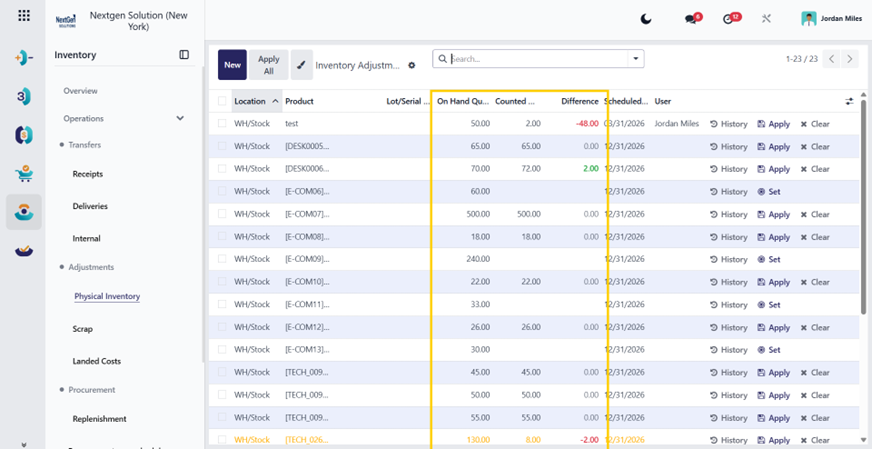
Inventory adjustments are used to correct on-hand quantities to match physical counts. This impacts finance when your products are configured with automated valuation, because stock quantity changes can affect inventory value and potentially create accounting entries depending on configuration.
When to use
- Monthly/quarterly physical stock counts.
- Discovered discrepancies (loss, damage, mispicks, unrecorded receipts).
- Initial stock take during go-live.
- Warehouse transfer/cleanup after migration.
Step-by-step workflow (Finance-Controlled)
Step 1 — Prepare finance controls before adjustment
Before anyone runs large adjustments:
- Confirm valuation method policy (Standard / FIFO / AVCO) for product categories.
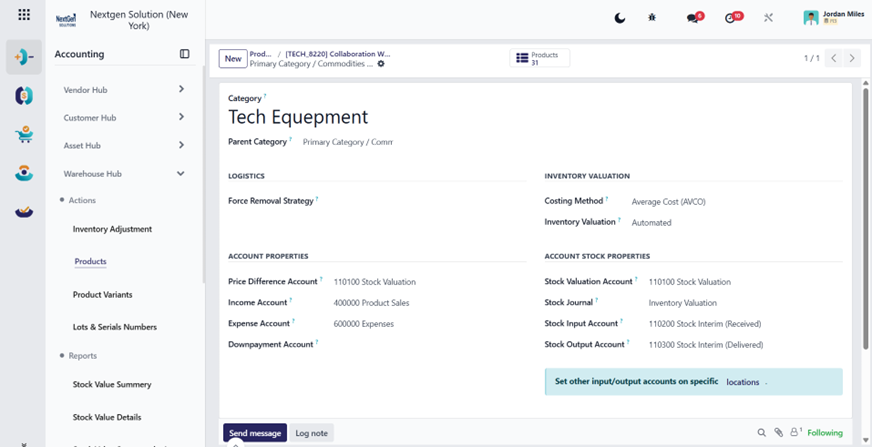
- Confirm inventory valuation mode (Manual vs Automated) for each product category.
- Confirm stock valuation accounts and stock input/output accounts on product categories.
- Finance rule: Do not allow large adjustments if the product category valuation configuration is incomplete.
Step 2 — Create an inventory adjustment session
- Open: Warehouse Hub → Actions → Inventory Adjustment.
- Choose the mode (depends on your setup; typical HuoPuo flow uses “Inventory Adjustments / Inventory Count”).
- Select:
- Location(s) to count (Warehouse / Stock / Specific zones).
- Optional: Product(s) filters (category, product, internal reference).
- Optional: Lot/Serial tracking inclusion.
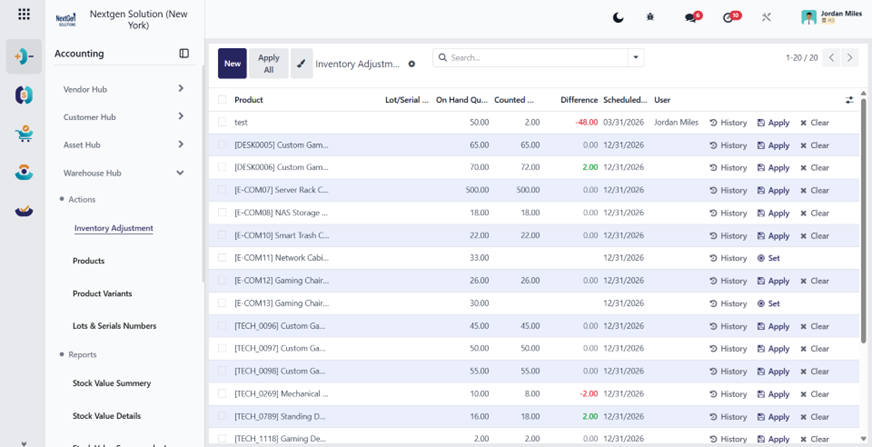
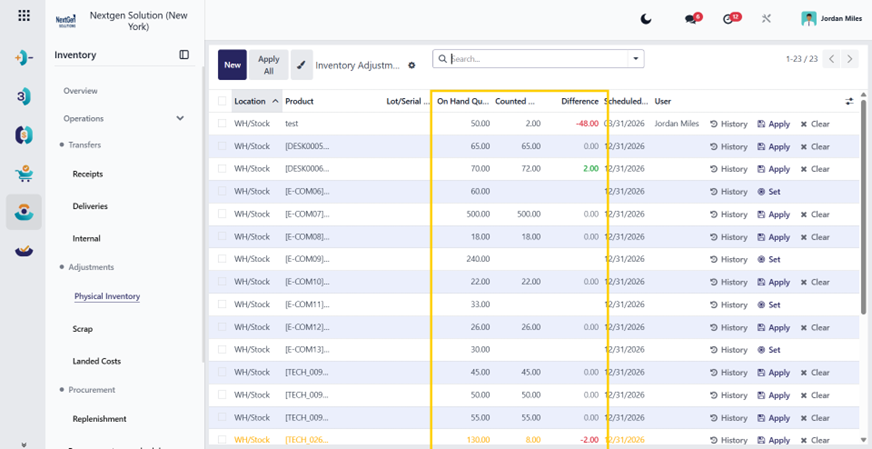
Step 3 — Count and input quantities
For each line:
- Product.
- Location.
- Lot/Serial (if tracked).
- On Hand Quantity (system).
- Counted Quantity (physical count).
- Difference (auto-computed).
Finance guidance:
- Always investigate large differences before applying.
- If lots/serials exist, differences must be corrected at the lot level (not aggregated).
Step 4 — Apply / Validate the adjustment
- Review differences.
- Validate / Apply inventory.
Accounting/valuation impact (what happens)
Depends on product category setup:
Case A — Automated inventory valuation (Real-time)
- Stock changes affect valuation layers.
- HuoPuo may generate journal entries for valuation movements.
- Impact hits the inventory valuation account and corresponding expense/COGS/adjustment accounts (based on stock input/output settings).
Case B — Manual inventory valuation (Periodic)
- No accounting entry created at adjustment time.
- Finance must post valuation changes periodically via manual entries.
Finance controls & best practices
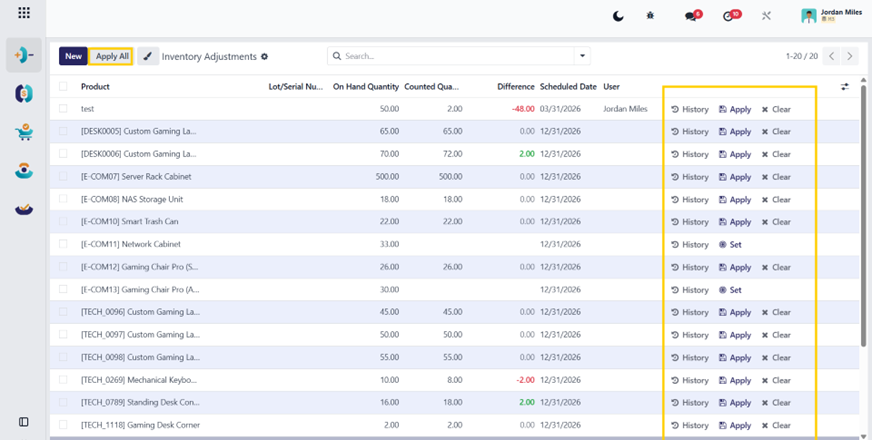
- Require approvals for large adjustments (policy).
- Use a separate adjustment location (Inventory Loss / Inventory Gain) to isolate the audit trail.
- Perform adjustments:
- At the month-end before closing.
- With reconciliation completed after.
- Always retain evidence:
- Stock count sheets.
- Approval logs.
- Adjustment references.
Common mistakes & fixes
1) “Stock value changed unexpectedly after adjustment.”
Root cause:
Automated valuation of active + wrong stock accounts on categories
Fix:
Verify product category accounting properties (stock valuation/input/output accounts)
2) “Lots/serial quantities don’t reconcile.”
Root cause:
Count applied at the product level without respecting the lot/serial
Fix:
Use lot/serial-aware counting lines and correct individually
3) “Inventory adjustment posted into the wrong period.”
Root cause:
Performed after the lock date or the wrong adjustment date
Fix:
Run before the lock date, or ensure proper accounting date policy
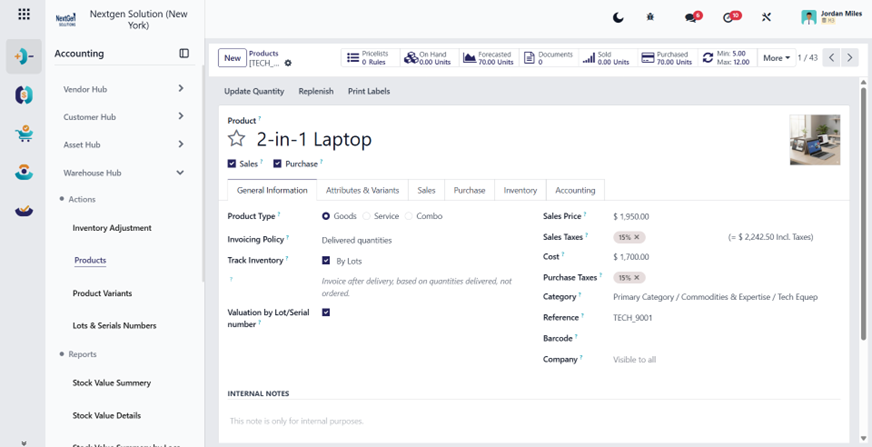
5.4.B2 Warehouse Hub → Actions → Products
Menu: Warehouse Hub → Actions → Products (product.template)
Finance objective
Ensure each product is correctly configured so inventory valuation and COGS are accurate.
Key finance fields to verify (Product form)
1st) General / Sales / Purchase
- Product Type: Storable Product (required for valuation).
- Sales Price (optional for finance).
- Cost (important for Standard cost and margin).
2nd) Inventory tab (critical)
- Routes (if relevant).
- Tracking: None / Lot / Serial.
- Responsible / lead times.
3rd) Accounting tab (most critical)
Depending on the HuoPuo setup, the accounting properties may be on Product Category, but the product may override.
Finance checks:
- Income account (for revenue).
- Expense account (for vendor bills when expensing directly).
- Stock valuation accounts (often inherited from the category).
Best practice: Do not allow product-level overrides unless there is a clear policy.
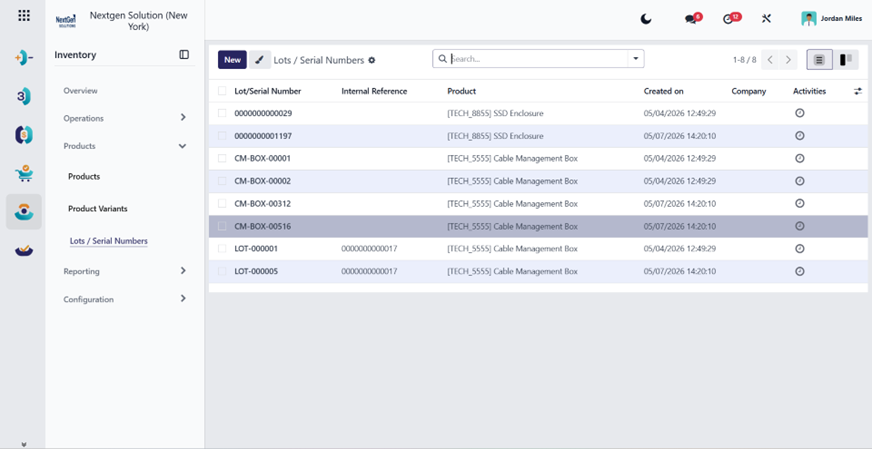
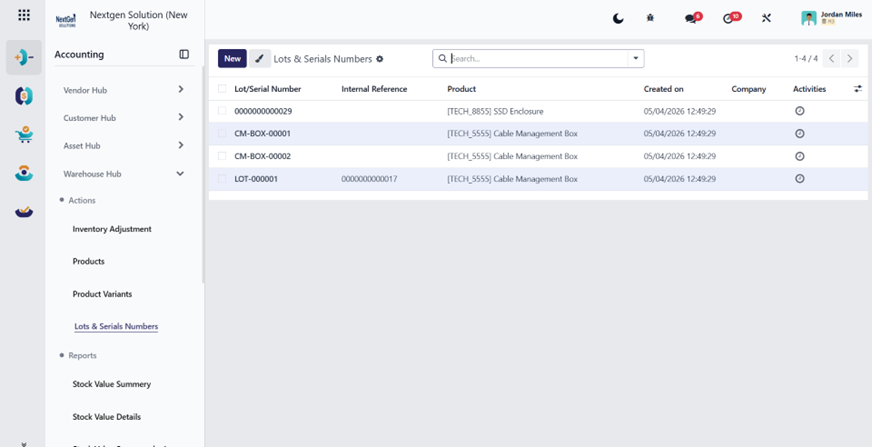
5.4.B3 Warehouse Hub → Actions → Lots & Serials Numbers
Menu: Warehouse Hub → Actions → Lots & Serials Numbers (stock.lot)
Purpose
Lot/Serial tracking is essential for:
- High-value inventory audit control.
- Traceability and warranty management.
- Compliance industries.
Finance use cases
- Validate the inventory value of regulated items.
- Investigate discrepancies by lot.
- Audit proofs: which lot was received/sold and at what cost layers.
5.4.B4 Warehouse Hub → Reports → Stock Value Summary
Menu: Warehouse Hub → Reports → Stock Value Summary (custom action)
Purpose
High-level overview of inventory value — usually aggregated by product/category.
How finance should use it
- Run report at period end.
- Export value totals.
- Compare against:
- Balance Sheet inventory account balance.
- Previous period inventory value.
- Investigate major movements:
- receiving spikes.
- cost changes.
- major inventory adjustments.
- scrap/write-offs.
Control: The total inventory valuation in the report should reconcile with GL inventory valuation accounts (for automated valuation).
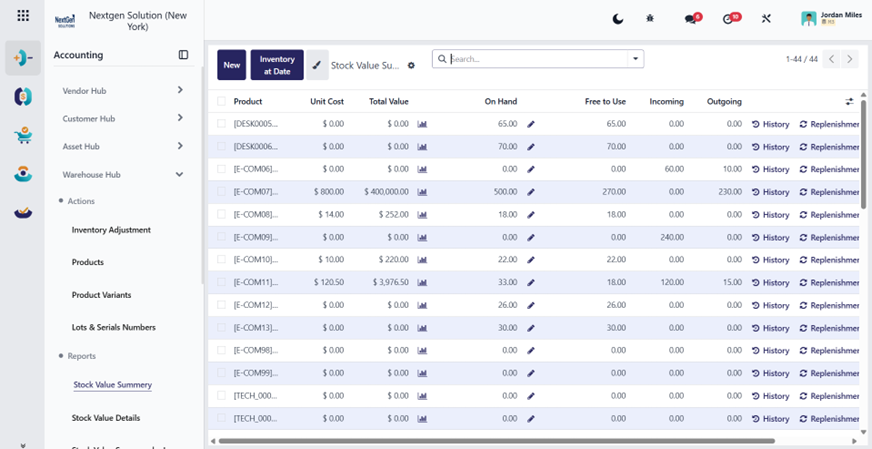
5.4.B5 Warehouse Hub → Reports → Stock Value Details
Menu: Warehouse Hub → Reports → Stock Value Details (stock.valuation.layer)
Purpose
This is the finance drill-down layer that explains “why inventory value is what it is”.
Key fields to read (valuation layer list)
- Date.
- Product.
- Quantity moved.
- Value change.
- Remaining quantity/value.
- Reference (stock move/picking).
When to use
- Audit requests.
- Investigating sudden inventory valuation changes.
- Finding the wrong landed cost allocation.
- Explaining FIFO/AVCO behavior.
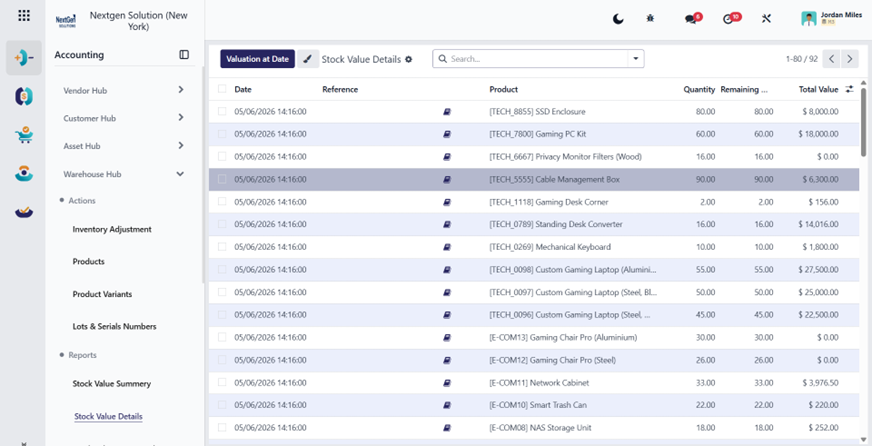
5.4.B6 Warehouse Hub → Reports → Stock Value Summary by Locations
Menu: Warehouse Hub → Reports → Stock Value Summary by Locations (stock.quant grouped by location)
Purpose
Track inventory distribution and value per location (warehouse zones, shops, branches).
Finance controls
- Validate location-level stock value for branch reporting.
- Identify slow-moving/dead stock concentrated in specific branches.
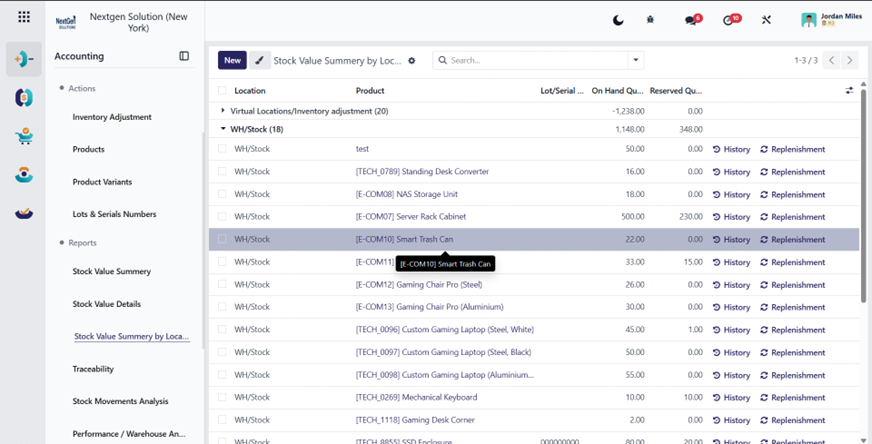
5.4.B7 Warehouse Hub → Reports → Traceability
Menu: Warehouse Hub → Reports → Traceability (stock.move.line)
Purpose
Provide full trace chain:
Supplier Receipt → Internal Transfer → Delivery to Customer → Returns
Finance value
- Cost & liability investigation.
- Warranty dispute support.
- Fraud detection (unexplained internal transfers).
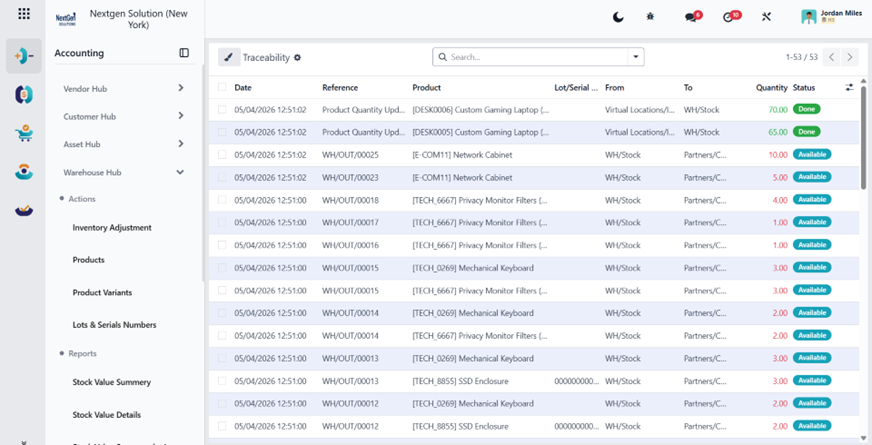
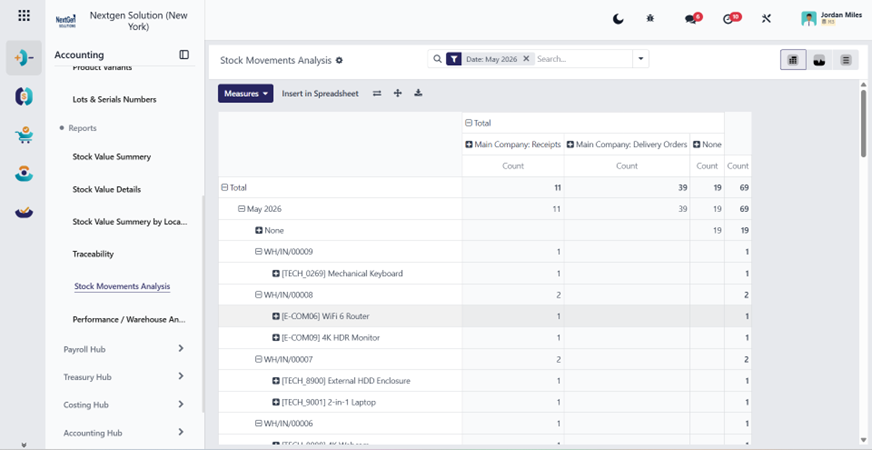
5.4.B8 Warehouse Hub → Reports → Stock Movements Analysis
Menu: Warehouse Hub → Reports → Stock Movements Analysis (pivot/graph)
Purpose
Analyze movements by:
- product.
- location.
- picking type.
- dates.
- quantity/value trends.
Finance use
- Identify abnormal write-offs.
- Analyze cost drivers and consumption.
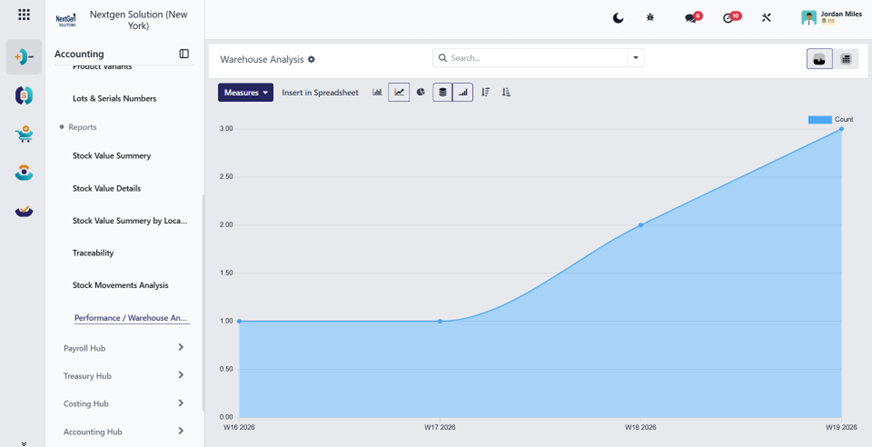
5.4.B9 Warehouse Hub → Reports → Performance / Warehouse Analysis
Menu: Warehouse Hub → Reports → Performance / Warehouse Analysis
Purpose
Enterprise KPI analysis for warehouse operations.
Finance use
- Efficiency indicators that correlate with cost (storage, shrinkage, turnover).
- Support budgeting and logistics cost control.
5.5 Costing Hub (Analytic Accounting, Distribution, Budgeting)
Summary
Costing Hub centralizes management accounting:
- Analytic plans and analytic accounts (cost centers/projects/departments).
- Analytic distribution models (auto-splitting costs).
- Analytic reporting.
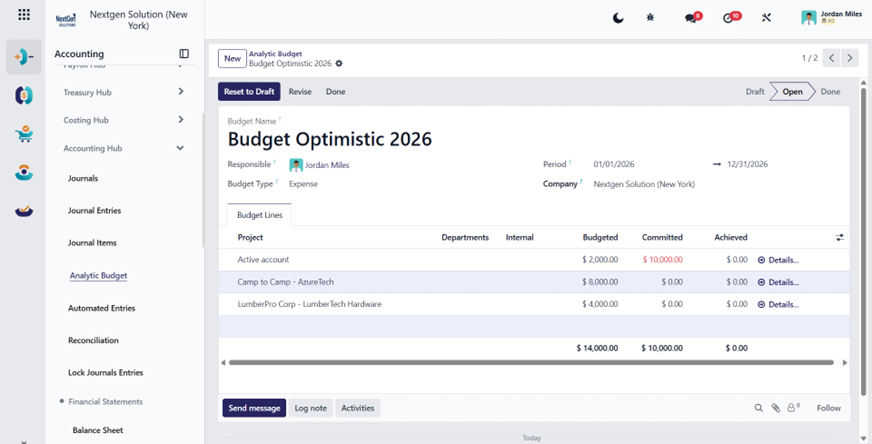
5.5.A Analytic Budgets (Budget Management)
Budgets are activated in Accounting settings (Budget Management in Analytics). Budgets require analytic plans/accounts to be configured first.
Where (HuoPuo menu):
- Accounting Hub → Analytic Budget (your custom model/menu).
- Costing Hub → Analytic Plans / Analytic Accounts / Analytic Distribution.
- Costing Hub → Reports → Analytic Reporting.
Recommended workflow
- Configure analytic structure (plans + accounts).
- Enable and create budgets.
- Post transactions with analytic allocation and monitor actual vs planned.
5.5.B Costing Hub — Deep Guide (Analytics & Budget Control)
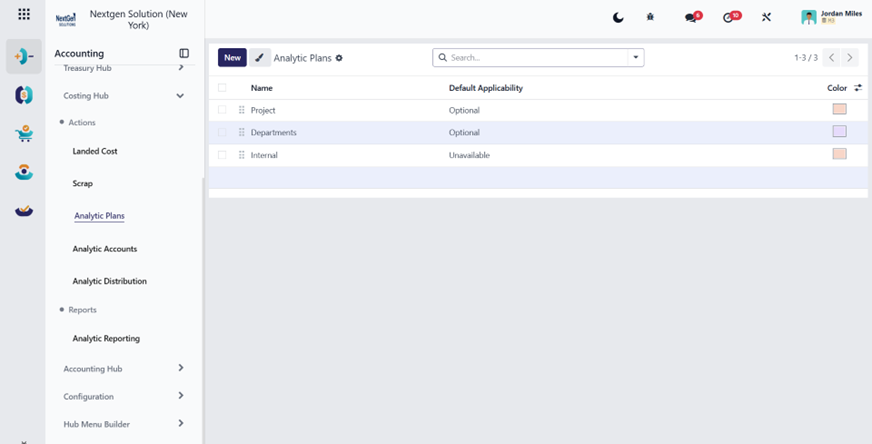
5.5.B1 Costing Hub → Actions → Analytic Plans
Purpose
Define analytic dimensions and applicability rules (optional/mandatory).
Key setup guidance
- Define plan name (e.g., Branch / Department / Project).
- Set applicability: if “Mandatory”, users must fill in the analytic distribution on invoices/bills in relevant contexts.
5.5.B2 Costing Hub → Actions → Analytic Accounts
Purpose
The actual analytic targets (e.g., Branch A, Project X).
What to fill
- Name.
- Company (if multi-company).
- Optional: analytic groupings.
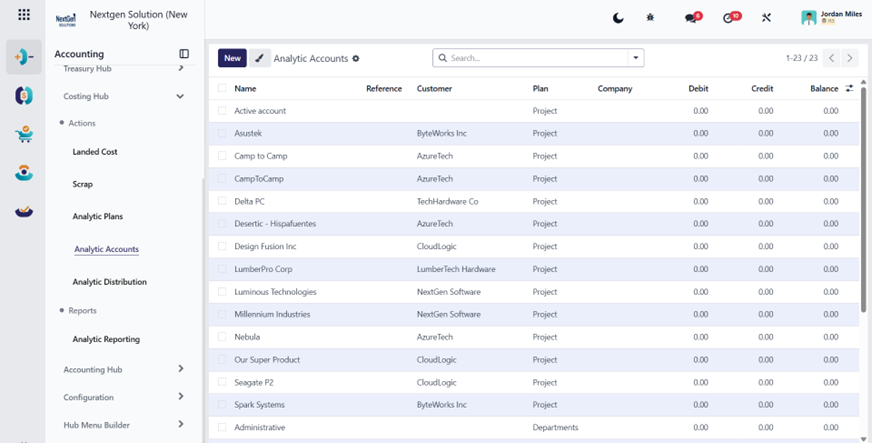
5.5.B3 Costing Hub → Actions → Analytic Distribution
Purpose
Automation: apply a distribution based on conditions so users don’t manually split costs.
Using it in invoices/bills
On an invoice/bill line, click the Analytic Distribution column and define the % split. It becomes mandatory when the plan is configured as mandatory.
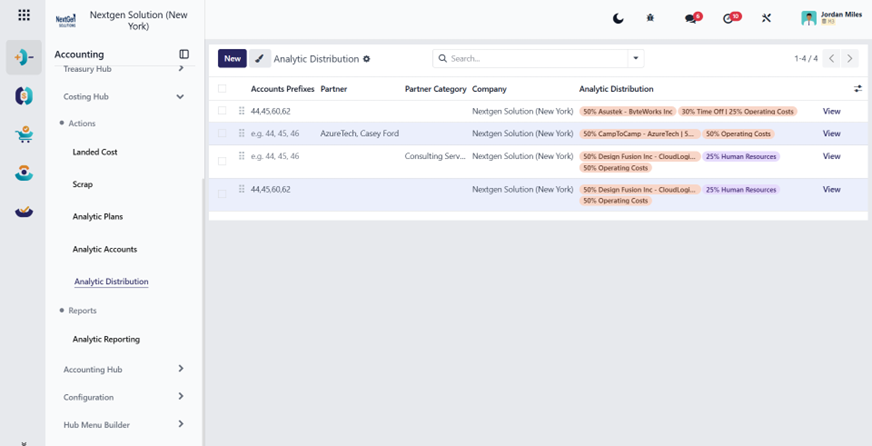
5.5.B4 Costing Hub → Reports → Analytic Reporting
Purpose
Profitability reporting by analytic dimensions.
How to use
- Pivot by analytic account, month, account, partner.
- Validate that high-value vendor bills have an analytic distribution populated.
5.6 Asset Hub (Fixed Assets)
Summary
Asset Hub supports:
- Asset creation, capitalization, and depreciation schedules.
- Asset models/templates.
- Depreciation reporting.
- Lease master records (Lease Assets).
- Automated schedules:
- Payment schedule.
- Interest amortization schedule.
- Depreciation schedule (ROU asset).
- Initial recognition entry (ROU Asset / Lease Liability).
- Operational payment tracking (“Paid” action).
- Periodic accounting processing via Periodic JV (month-end entries).
- Lease termination/retirement handling with settlement/closing entry.
- Analysis reporting (pivot/graph).
Where (HuoPuo menu):
- Asset Hub → Assets.
- Asset Hub → Asset Models.
- Asset Hub → Lease Assets.
- Asset Hub → Payments.
- Asset Hub → Interests.
- Asset Hub → Depreciations.
- Asset Hub → Periodic JV.
- Asset Hub → Asset Types.
- Asset Hub → Lease Analysis Report.
- Asset Hub → Reports → Depreciation Schedule.
(Your reporting action points to the standard assets report.)
5.6.A Assets Hub — Deep Guide (Fixed Assets)
5.6.A1 Asset Hub → Assets
Menu: Asset Hub → Assets (account.asset; domain excludes models)
Purpose
Manage the lifecycle of fixed assets:
- capitalization.
- depreciation.
- revaluation (if applicable).
- disposal.
When to use
- Purchase of equipment, vehicles, IT hardware, furniture.
- Capitalization of major improvements.
- Reclass from expense to asset after review.
Step-by-step: Create an Asset
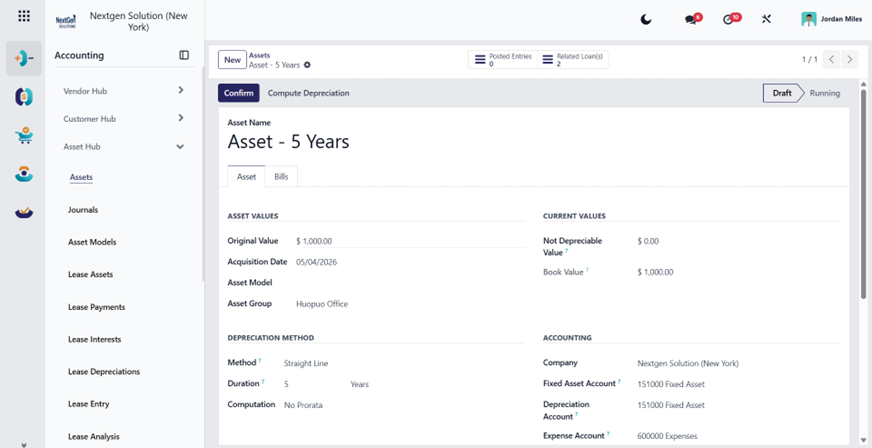
Step 1 — Create asset
Asset Hub → Assets → Create
Fill the key fields:
Step 1-A Asset Identification
- Asset Name (clear and unique).
- Reference (vendor bill number / PO reference).
- Company.
- Asset Category / Model (if your UI uses model linking).
Step 1-B Asset Value
- Original Value / Purchase Value.
- Salvage Value (optional).
- Currency (if multi-currency assets are used).
Step 1-C Dates
- Acquisition Date.
- Depreciation Start Date.
- First Depreciation Date (if different).
Step 1-D Depreciation Configuration
- Depreciation Method.
- Straight line / Declining.
- Number of Depreciations or Duration.
- Periodicity.
- Monthly / Quarterly / Yearly.
Step 1-E Accounting Configuration
- Asset Account (Balance Sheet).
- Depreciation Expense Account (P&L).
- Accumulated Depreciation Account (contra asset).
- Journal (depreciation journal).
Finance best practice: these should be driven from Asset Models, not manually per asset.
Step 2 — Confirm / Validate asset
Confirm to activate the depreciation schedule.
Step 3 — Depreciation posting
At each period:
- Post depreciation entry.
- Verify entry hits:
- Debit depreciation expense.
- Credit accumulated depreciation.
Posting impact
When depreciation is posted:
- P&L increases expense.
- The balance sheet reduces net book value via accumulated depreciation.
Common mistakes & fixes
1) Wrong depreciation start date
The depreciation schedule misaligns with the fiscal period
Fix: adjust start date or recompute schedule per policy.
2) Wrong accounts
Depreciation expense is not in the correct cost center
Fix: Use the correct asset model accounts and apply analytic distribution if needed.
3) Asset created but never confirmed
Depreciation never runs
Fix: Enforce the asset confirmation checklist.
5.6.A2 Asset Hub → Asset Models
Menu: Asset Hub → Asset Models (account.asset where state=model)
Purpose
Standardize asset creation so users do not manually choose accounts/methods each time.
What fields to configure in the Asset Model
- Model Name (e.g., “IT Equipment – 3 Years”).
- Depreciation method and schedule (method, duration, periodicity).
- Default accounts (asset, depreciation expense, accumulated depreciation).
- Default journal.
- Optional: analytic default/cost center logic (policy-based).
Governance: Asset models should be maintained only by finance managers.
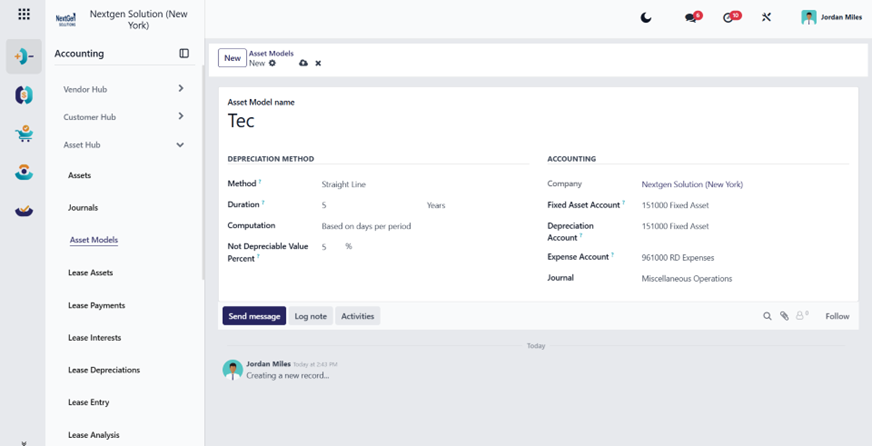
5.6.A3 Asset Hub → Journals (Dashboard)
Menu: Asset Hub → Journals (custom dashboard action)
Purpose
A quick view of asset-related journals and depreciation workflow statuses.
Finance use:
- Track pending depreciation entries.
- Validate posting journals are correct.
- Detect missing postings before the month-end close.
5.6.A4 Asset Hub → Reports → Depreciation Schedule
Menu: Asset Hub → Reports → Depreciation Schedule
Purpose
Official depreciation plan report for:
- audit evidence.
- forecasting.
- verifying depreciation totals per period.
How to use
- Run by fiscal year/period.
- Filter by company, asset category/model.
- Export for audit pack.
Reconciliation control
Depreciation expense total per month should match:
- P&L depreciation expense line.
- Journal entry totals for depreciation journal.
5.6.A5 IFRS 16 Lease Accounting
5.6.A5.1 Purpose and Scope
enables IFRS 16 lease accounting inside HuoPuo by providing:
- Lease master records (Lease Assets).
- Automated schedules:
- Payment schedule.
- Interest amortization schedule.
- Depreciation schedule (ROU asset).
- Initial recognition entry (ROU Asset / Lease Liability).
- Operational payment tracking (“Paid” action).
- Periodic accounting processing via Periodic JV (month-end entries).
- Lease termination/retirement handling with settlement/closing entry.
- Analysis reporting (pivot/graph).
Actors: This documentation is written to be used by:
- Lease Accountant / Accountant.
- Finance Controller / CFO.
- Auditor (read-only).
5.6.A5.2 Menu & Navigation
All IFRS 16 actions are under:
Accounting → Assets Hub → IFRS 16 Lease Accounting
Inside this menu, users will find:
- Lease Assets.
- Payments.
- Interests.
- Depreciations.
- Periodic JV.
- Asset Types.
- Lease Analysis Report.
5.6.A5.3 Roles, Permissions, and Accounting Governance
Recommended roles (policy)
Lease Accountant (Operational)
- Create leases.
- Compute schedules.
- Mark payment lines as Paid.
- Run the lease analysis report.
Finance Controller (Approval / Posting)
- Confirm leases (initial recognition entry).
- Review/post periodic JV entries (if created as a draft).
- Approve, terminate/retire settlement entries.
Auditor / Read-only
- Read-only access to Lease Assets, schedules, and reports.
Segregation of duties (best practice)
- Allow “Compute” to Lease Accountant.
- Restrict “Confirm / Terminate / Retire” to the Controller level.
- Ensure only authorized users can post accounting entries.
5.6.A5.4 Initial Setup (Critical for Accounting Users)
5.6.A5.4.1 Configure Asset Types (Account Mapping)
Menu: Accounting → Assets Hub → Asset Types
Asset Types are the accounting backbone. Every lease uses one Asset Type, and that type defines the accounts used in journal entries.
Step-by-step: Create an Asset Type
Click Create
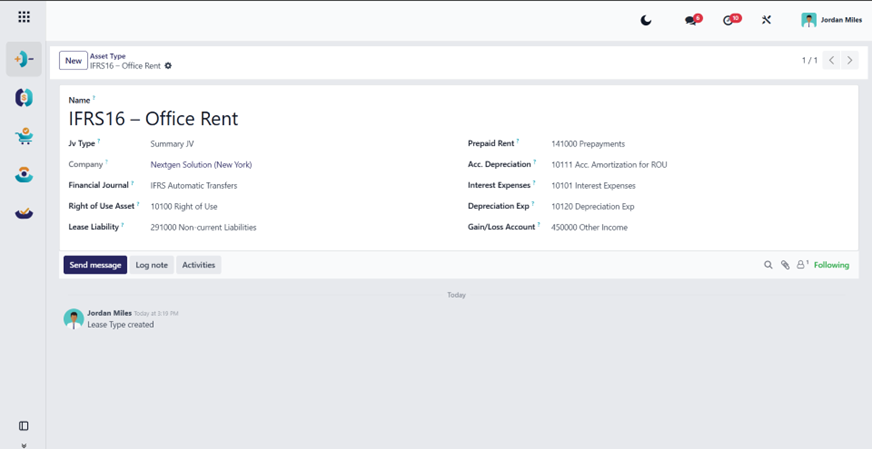
Fill:
A) Identification
- Name (e.g., “IFRS16 – Office Rent”, “IFRS16 – Vehicles”).
- Company.
B) Journal
- Select the Journal where IFRS 16 entries will be posted.
- (recommended: a dedicated journal like “IFRS16 / Lease Journal”).
C) Accounts (mandatory mapping)
Map each field to your chart of accounts:
- ROU Account (rou_account): Balance Sheet – Right-of-Use Asset.
- Lease Liability Account (llb_account): Balance Sheet – Lease Liability.
- Accumulated Depreciation Account (acd_account): Balance Sheet – Accumulated Depreciation (contra asset).
- Depreciation Expense Account (dpr_account): P&L – Depreciation Expense (ROU).
- Interest Expense Account (int_account): P&L – Lease Interest Expense.
- P&L / Settlement Account (pnl_account): P&L – Used as a balancing account during termination/retirement settlement entry.
Accounting note: Some module versions include extra account fields. Only map those that are used by your postings and keep the rest aligned to policy.
Best practice
Create a separate Asset Type per lease category (Buildings / Vehicles / Equipment) to keep reporting clean and audit-ready.
5.6.A5.5 Core Workflow (Lease Asset Lifecycle)
5.6.A5.5.1 Create a Lease Asset (Master Record)
Menu: Accounting → Assets Hub → Lease Assets → Create
Step-by-step: Header fields (what to fill)
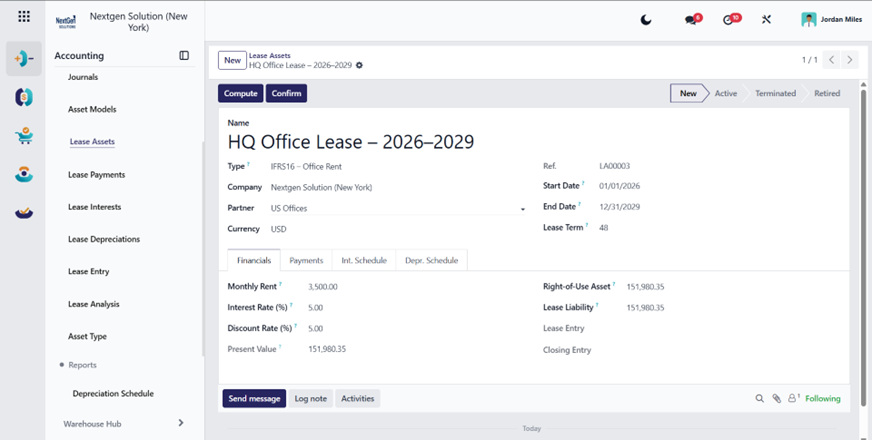
A) Lease Identity
- Name: clear unique name (e.g., “HQ Office Lease – 2026–2029”).
- Asset Type: select the configured Asset Type.
- Company.
- Partner (Lessor): landlord/bank/vendor.
- Currency.
B) Lease Term
- Start Date.
- End Date.
Control: Start date must be earlier than end date (system validation).
5.6.A5.5.2 Fill Financial Inputs (Financials Tab)
Open the Financials section in the Lease Asset.
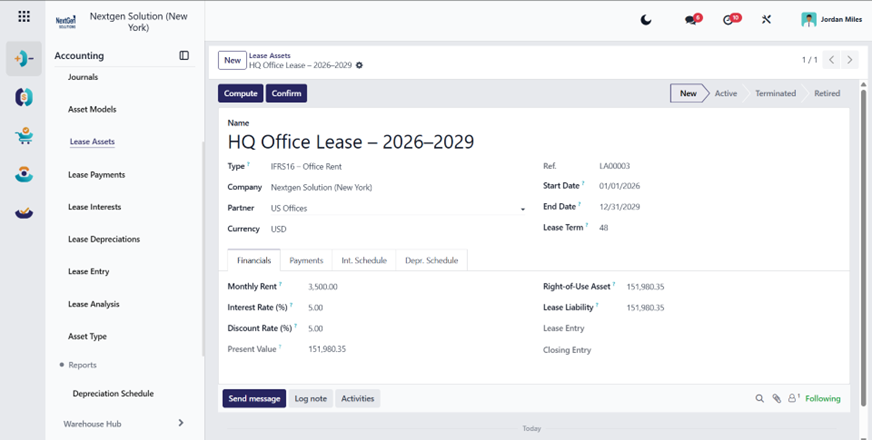
Fields to enter (critical)
- Monthly Rent / Lease Payment (lease_payment).
- Interest Rate (%) (interest_rate): Used to compute the interest schedule.
- Discount Rate (%) (discount_rate): Used to compute present value (NPV).
Fields computed by the module
- Present Value (present_value): Computed based on payment stream and discount rate.
- Right-of-Use Asset (right_of_use_asset): Set equal to the present value by the module compute logic.
- Lease Liability (lease_liability): Set equal to the present value by the module compute logic.
- Avg / Straight-Line Depreciation Value (discnt_value): Computed as ROU / lease term (monthly).
IFRS 16 policy reminder
This module assumes ROU and Liability start from the PV of lease payments. If you need to include initial direct costs, restoration provisions, etc., that is usually a customization or manual adjustment entry.
5.6.A5.5.3 Generate Schedules (Compute)
Click Compute on the Lease Asset form.
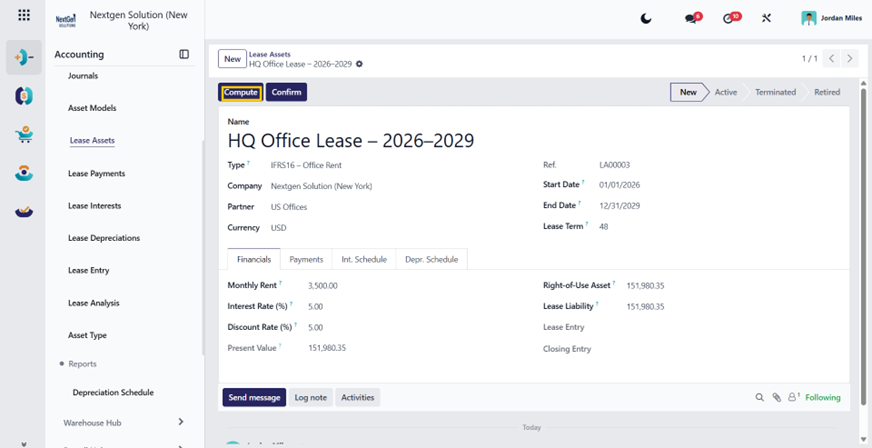
What Compute does
It generates 3 schedules automatically:
- Payments schedule.
- Interest schedule.
- Depreciation schedule.
1) Payments schedule (Payments tab)
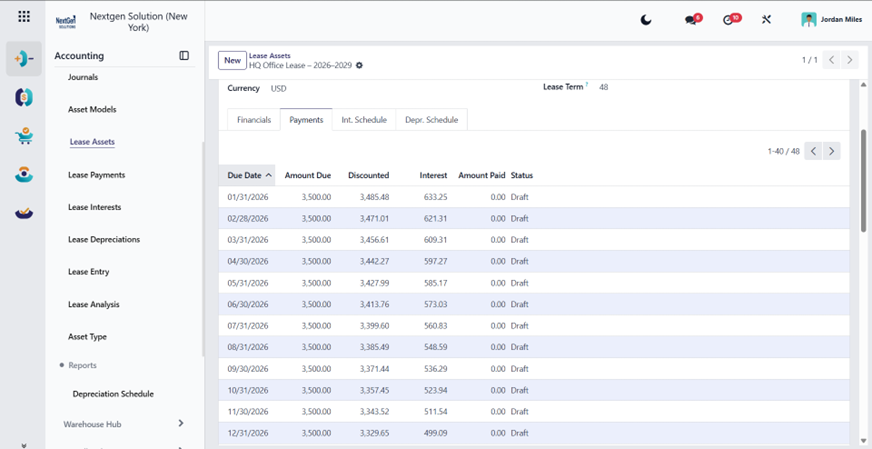
Each monthly line typically contains:
- Due date.
- Amount due (monthly rent).
- Discounted amount.
- Interest portion reference.
- Amount paid (once paid).
- Status/state and linked move (if created).
2) Interest schedule (Int. Schedule tab)
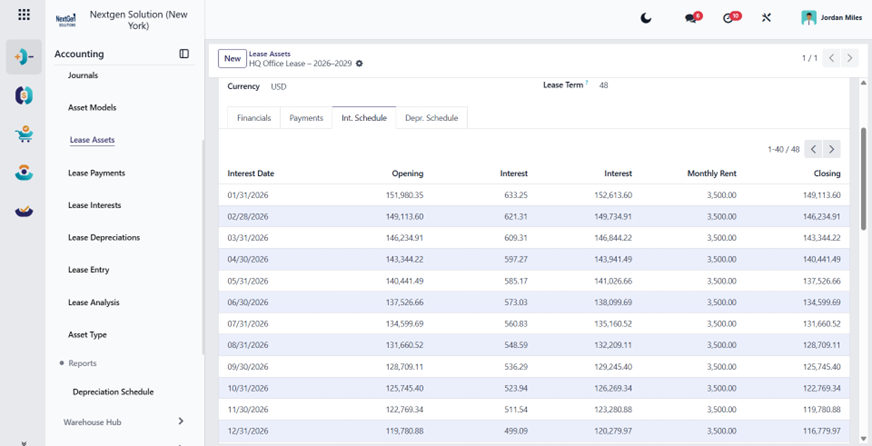
Each line includes:
- Opening balance.
- Interest for the period.
- Payment amount.
- Closing balance.
3) Depreciation schedule (Depr. Schedule tab)
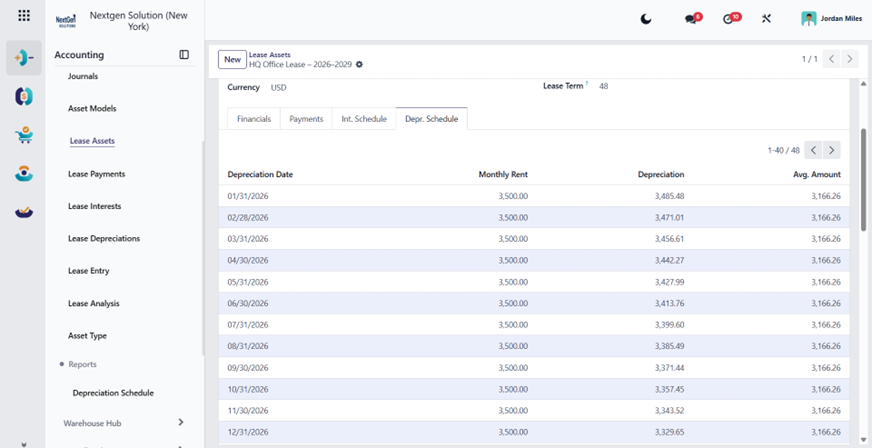
Each line includes:
- Depreciation date.
- Depreciation amount (based on ROU and lease term logic).
Control rule (important)
Compute is blocked if:
- The lease has already created accounting entries (initial move or settlement move), or
- Any payment lines already have posted move links.
This prevents schedule regeneration after accounting has started.
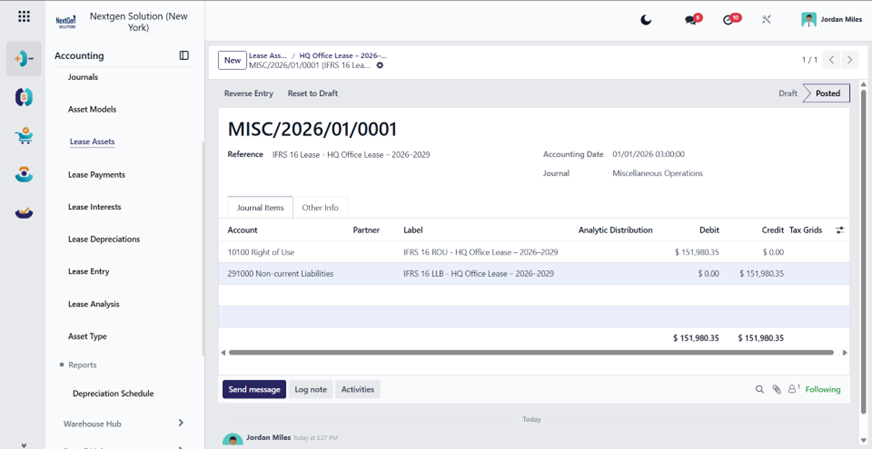
5.6.A5.5.4 Confirm Lease (Initial Recognition Entry)
After schedules are verified, click Confirm.
What Confirm does
Creates and posts the initial IFRS 16 journal entry dated on the Start Date:
- Debit: ROU Asset → Asset Type.Rou Account.
- Credit: Lease Liability → Asset Type.LLB Account.
Outcomes
- Lease state becomes Active.
- Lease records a link to the posted entry (move_id).
5.6.A5.6 Operational Processing (Payments + Month-End)
5.6.A5.6.1 Payments (Mark Paid and Track)
Menu: Accounting → Assets Hub → Payments
This is the operational list of payment schedule lines.
Standard monthly workflow (SOP)
Filter Payments by:
- Due date (current month).
- Lease status = Active.
For each installment paid to the lessor:
- Open the line and click Paid.
- Confirm:
- Amount paid is updated.
- Linked journal entry exists (if module creates one per payment).
- Treasury reconciles actual bank payments in the bank journal.
Governance recommendation
- Lease Accountant can mark Paid.
- Controller reviews posted move impacts and ensures bank reconciliation is complete.
Note: The exact accounting entry created by the “Paid” action can vary by module implementation. In most IFRS 16 flows, payment reduces liability and recognizes interest. If you share one example journal entry created after “Paid”, I can update this document with the exact Dr/Cr accounts used in your build.
5.6.A5.6.2 Periodic JV (Month-End IFRS 16 Entries)
Menu: Accounting → Assets Hub → IFRS 16 Lease Accounting → Periodic JV
This is your month-end engine.
Wizard fields
- Date From.
- Date To.
- Company.
- Generate button.
Purpose
Create period entries typically required for IFRS 16:
- Interest expense recognition.
- Depreciation expense recognition.
- Liability movement alignment (depending on design).
Recommended month-end process
- Ensure all leases are Active.
- Ensure schedules are computed.
- Confirm payment lines are updated for the month (Paid where applicable).
- Run Periodic JV for the month date range.
- Review generated journal entry(s).
- Post entries (if drafts).
- Proceed with month-end lock dates in Accounting Hub.
Best practice
Run the periodic JV after bank statement reconciliation is stable and before period locking.
5.6.A5.7 Closing the Lease (Terminate / Retire)
5.6.A5.7.1 Terminate (Early termination or contract change)
Open the Lease Asset and click Terminate.
What happens
The module computes closing balances based on:
- total payments, interest, and depreciation generated.
- Creates a settlement journal entry that clears remaining balances.
- Uses Asset Type.pnl_account for balancing differences.
Accounting outcome (conceptual)
Settlement entry usually:
- Clears remaining Lease Liability.
- Clears ROU asset / accumulated depreciation position.
- Sends the difference to the P&L settlement account.
Governance note
Even if the system creates the move automatically, finance should:
- Open the settlement entry.
- Validate accounts and amounts.
- Post only after approval.
5.6.A5.7.2 Retire (Normal completion)
Click Retire when the lease reaches the end, and all payments are completed.
Rule enforced
Retirement is allowed only if all required payment lines are processed/postable. If unpaid/unposted lines exist, system blocks retire and ask to post payments or terminate instead.
5.6.A5.8 Reporting & Analysis
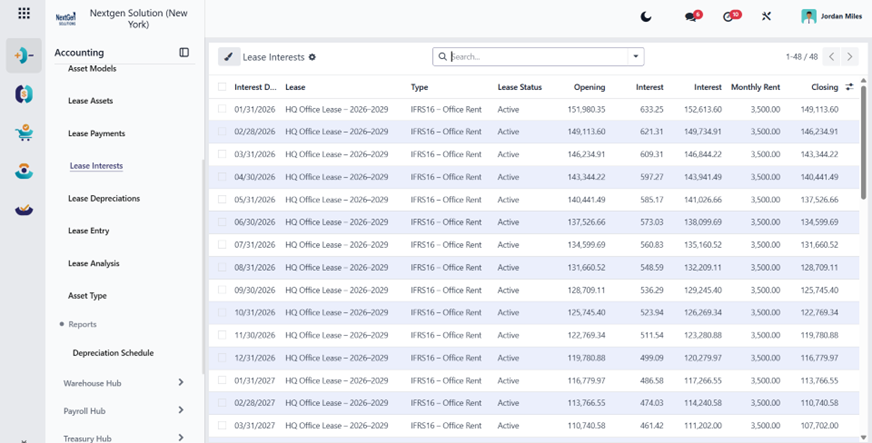
5.6.A5.8.1 Interests list
Menu: Accounting → Assets Hub → Interests
Use to review interest schedule lines and verify interest expense over time.
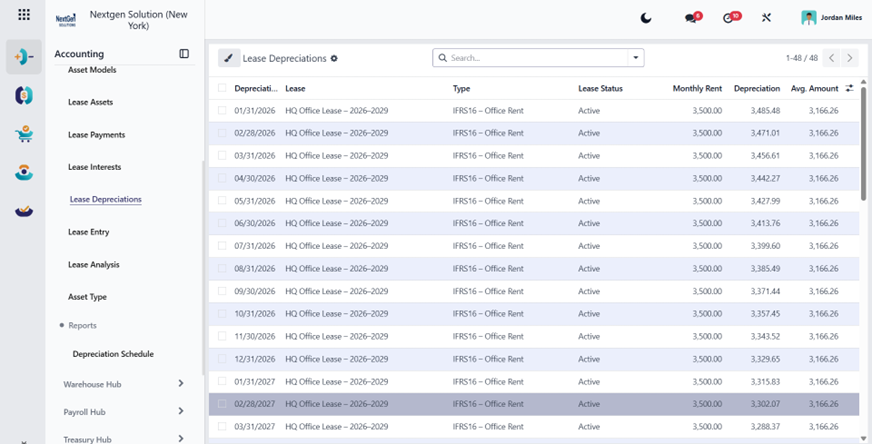
5.6.A5.8.2 Depreciations list
Menu: Accounting → Assets Hub → Depreciations
Use to review the depreciation schedule and reconcile with the depreciation expense totals.
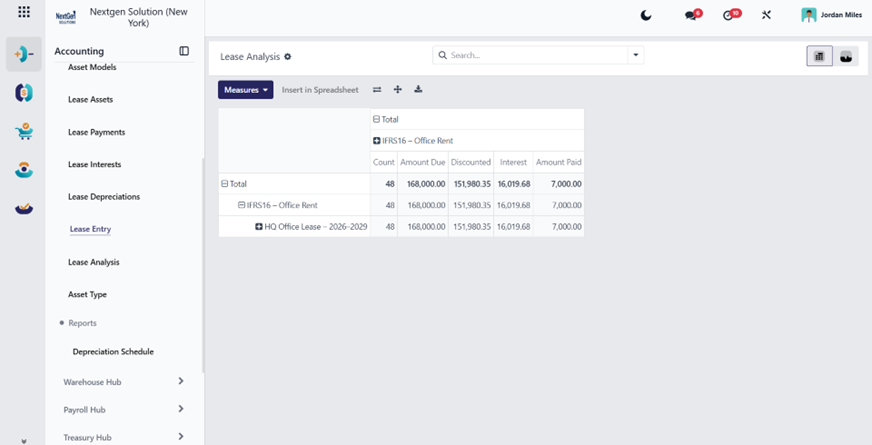
5.6.A5.8.3 Lease Analysis Report
Menu: Accounting → Assets Hub → Lease Analysis Report
Use pivot/graph measures such as:
- Amount due.
- Discounted amount.
- Interest.
- Amount paid.
Best uses:
- Total lease cost trends.
- Interest trend analysis.
- Paid vs due monitoring.
5.6.A5.9 Accounting Control Checklist (Must Follow)
Before confirming a lease
- Asset Type accounts are mapped correctly.
- Journal is correct.
- Dates and lease term correct.
- Rates verified (interest/discount).
- Present value reviewed.
- Schedules computed and reviewed.
Month-end close
- Payment status updated (Paid lines).
- Periodic JV generated and posted.
- Depreciation and interest reconcile to schedules.
- Lease liability account reviewed.
- Period lock date applied after close.
Before terminating/retiring
- Validate all posted entries exist.
- Validate settlement move and P&L balancing.
- Reconcile the liability ending balance.
5.6.A5.10 Testing Checklist (UAT)
Asset Type Setup
- Create Asset Type with accounts + journal.
Lease Creation
- Create Lease Asset.
- Compute schedules.
- Confirm lease.
- Verify initial recognition entry posts correctly (ROU vs Liability).
Payment Processing
- Mark one payment line Paid.
- Verify linked entry (if created).
- Verify liability/interest impacts.
Periodic JV
- Run the wizard for one month.
- Confirm depreciation + interest entries created correctly.
Close
- Terminate: settlement move created and balances cleared.
- Retire: only works if payments are completed.
5.7 Payroll Hub (Payroll Accounting Visibility)
5.7.1 Summary
Payroll Hub organizes:
- Pay slips pipeline (to pay, employee slips, batches).
- Payroll analysis.
Where (HuoPuo menu):
- Payroll Hub → Actions → Pay slips To Pay / Employee Pay slips / Batches.
- Payroll Hub → Reports → Pay slip Analysis.
5.7.2 Payroll Hub → Actions → Pay slips To Pay
What this list is
This list is your payment queue: pay slips that are processed and need to be paid/finalized.
When to use it
- End of payroll period (monthly/bi-weekly).
- Before exporting the payment report.
- To verify that all employees are included and ready to pay.
Standard workflow (from To Pay screen)
- Open a pay slip.
- Validate it (Create Draft Entry → Post journal entry).
- Create Payment Report.
- Pay employee.
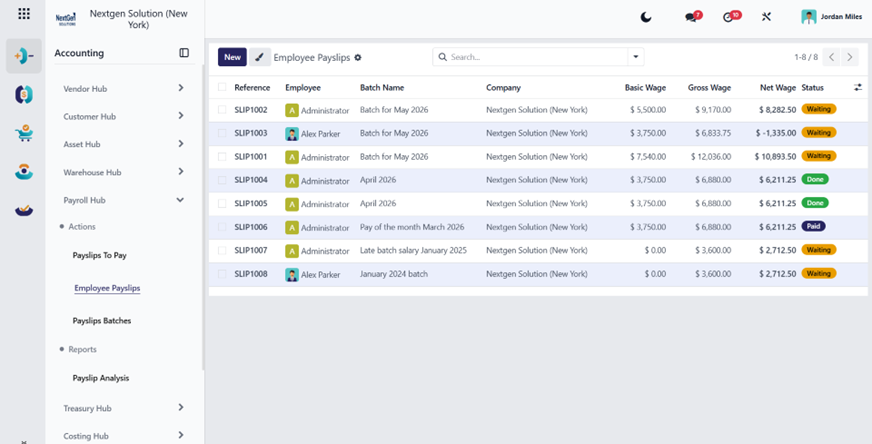
5.7.3 Payroll Hub → Actions → Employee Pay slips
What this list is
Full list of pay slips (draft, waiting/to pay, paid, cancelled). Used for:
- creating pay slips one by one.
- correcting and reprocessing.
- historical lookup and audits.
Creating a new pay slip (step-by-step)
HuoPuo states you can create a pay slip from either “To Pay” or “All Pay slips/Employee Pay slips”.
Step 1 — Create
Payroll Hub → Actions → Employee Pay slips → New
Step 2 — Header fields (what to fill)
These are the key fields that drive calculation and accounting.
Employee
Select the employee being paid.
Period (Date From / Date To)
Defines what time period this pay slip covers.
Structure / Salary Structure Type (depends on your payroll setup)
Determines which salary rules apply.
Contract
Must be active/valid for the period.
Work entries / Worked days
HuoPuo uses work entries and then applies the structure/rules/parameters to compute salary.
Step 3 — Other Info / Accounting fields (important)
HuoPuo highlights these behaviors:
- The Period end date populates the Close Date and Date Account by default.
- Close Date = payment issue date.
- Date Account = end date the pay slip covers.
- You can modify if needed.
- Salary Journal is populated automatically and cannot be edited (this is the journal used for payroll entries).
Finance rule: confirm Date Account is within the correct open accounting period before posting.
Step 4 — Inputs (optional)
If your rules require bonuses/deductions, add them in the Inputs section (depends on the configured “Other Inputs” in payroll structures).
Step 5 — Compute sheet / Calculate
Calculate the pay slip so gross/net and rule lines are generated.
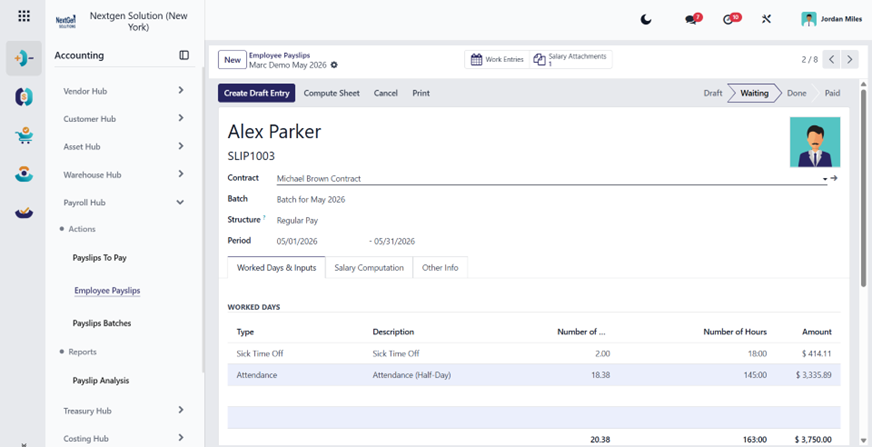
Processing a pay slip (Create entry → Pay)
HuoPuo’s processing sequence is explicit: Draft journal entry → Payment report → Pay employee.
Step A — Create Draft Entry
Click Create Draft Entry:
- System confirms.
- Pay slip status becomes “Done”.
- A Journal Entry (Draft) smart button appears.
Step B — Post the Journal Entry
- Open Journal Entry (Draft) → click Post.
- Smart button becomes Journal Entry (Posted).
- Employees cannot be paid until the journal entry is posted.
Step C — Create Payment Report
- Click Create Payment Report.
- Select Export Format (default options mentioned: NACHA and CSV).
- Additional formats can appear depending on localization.
Step D — Pay the employee
After posting and payment report, execute payment according to your company's method (bank transfer, direct deposit file, etc.).
5.7.4 Payroll Hub → Actions → Pay slips Batches
Why batches matter
Batches are the recommended enterprise method to process payroll for many employees at once.
HuoPuo describes batch list columns:
- Name.
- Date From.
- Date To.
- Status.
- Pay slips Count.
- Company.
A) Create a new batch
Payroll Hub → Actions → Pay slips Batches → New
Fill:
- Batch Name (short descriptive).
- Period (Date From / Date To).
The company auto-set and cannot be changed in a multi-company context; create a batch under the correct company.
B) Add pay slips to the batch
Important rule: pay slips can only be added when the batch is in the New stage.
You have two options:
Option 1 — Generate Pay slips (recommended)
Click Generate Pay slips → pop-up appears.
It includes selection logic:
- Department.
- Job Position.
- Salary Structure Type.
The Employees list updates as filters are set.
Also:
- You can choose a specific Salary Structure; if blank, each employee’s default structure is used.
- Click Generate:
- Pay slips are created and attached.
- Batch moves to Confirmed.
- Pay slips smart button appears.
Option 2 — Add Pay slips (already created)
- Click Add Pay slips.
- Select from available pay slips not yet assigned to a batch.
HuoPuo notes this list may include pay slips of any status (Draft/Waiting/Paid/Cancelled), allowing retro grouping for reporting.
C) Process the batch (accounting + payments)
Batch must be Confirmed (created + pay slips attached but not processed yet).
Steps:
- Click Create Draft Entry.
- Confirms and creates draft entries for individual pay slips.
- Batch status becomes Done.
- If you must revert:
- Set to Draft returns to New without removing pay slips.
- But if any pay slip is paid, you cannot revert to New.
- Click Create Payment Report.
- Choose export format (NACHA / CSV by default; may vary by localization).
Finance best practice: Batch processing should be the standard method, because it ensures consistent periods, consistent accounting dates, and consistent payment file export.
5.7.5 Payroll Hub → Reports → Pay slip Analysis
What it shows (HuoPuo 18)
HuoPuo’s Payroll Analysis report displays total net wage for the company over the last 365 days, and is used to identify payroll cost trends.
How to run it (recommended)
- Payroll Hub → Reports → Pay slip Analysis.
- Use the Graph view for the trend line.
- Use Measures to switch metric:
- net wage (default).
- gross wage.
- days of paid/unpaid time off, etc.
- Use Pivot view to show multiple measures at once (the graph shows one measure only).
- Use comparison (Previous Period / Previous Year):
- In pivot view, enable search panel → Start Date → choose a period → Comparison appears.
How to interpret (management guidance)
Rising net wage trend:
- can mean headcount increase or salary increases.
- Use pivot grouped by Department to identify cost centers causing change.
5.7.6 Payroll Accounting Outputs (What finance should expect)
What gets generated when processing
From HuoPuo’s pay slip flow:
- Create Draft Entry → creates payroll journal entry draft.
- Post → posts entry.
- Payment Report → generates bank file/export document.
- Pay → finalizes payment workflow.
Key governance points
- Do not pay before posting the journal entry (HuoPuo explicitly disallows).
- Use correct Date Account / Close Date logic to avoid wrong-period posting.
- Keep Salary Journal consistent and controlled (it’s auto-populated and not editable on pay slip).
5.8 Accounting Hub (Core Accounting Operations & Statutory Reporting)
Summary
Accounting Hub is the controller/accountant’s workspace:
- Journals dashboard.
- Journal entries & journal items.
- Automated entries (transfer models).
- Reconciliation.
- Lock dates/closing controls.
- Financial statements and audit reports.
5.8.A Period Closing Control (Lock Dates)
Your menu includes a lock tool:
Accounting Hub → Lock Journals Entries (account.change.lock.date)
This should be used as part of the month-end and year-end control to prevent back-dated posting after closing.
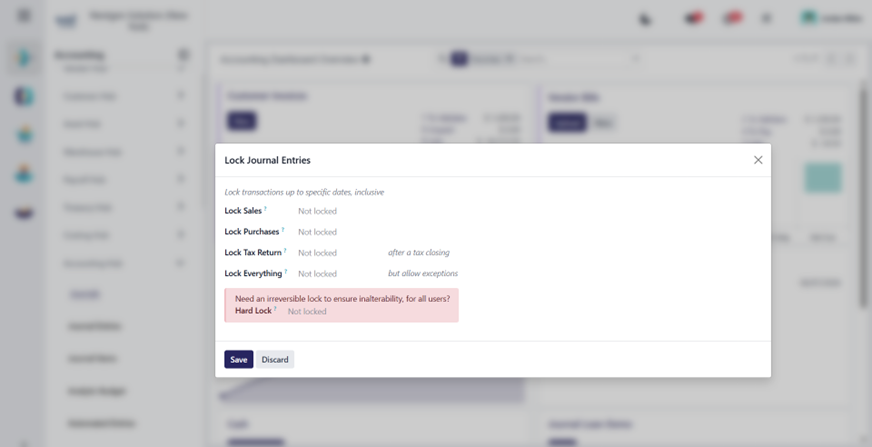
5.8.B Financial Reports (Accounting Hub → Reports)
Your menu groups reports into:
Financial Statements
- Balance Sheet.
- Profit and Loss.
- Statement of Cash Flows.
- Tax Return.
Audit Reports
- General Ledger.
- Partner Ledger Multi-Currency (your custom report).
- Trial Balance.
- Journal Audit.
Management
- Executive Summary.
- Unrealized Currency Gains/Losses.
- Deferred Expense / Deferred Revenue.
- Disallowed Expenses.
- Budget Report (your custom model).
- Product Margin.
(These align with standard HuoPuo report actions plus your custom multi-currency partner ledger.)
5.8.C Year-End Closing (Fiscal Periods)
HuoPuo’s year-end guide notes fiscal year defaults (12 months ending Dec 31) but allows changing the fiscal year end (Last Day) from Accounting settings under Fiscal Periods.
Where (HuoPuo menu):
Configuration → Settings (Fiscal Periods)
Recommended internal checklist
- Ensure all invoices/bills are posted for the fiscal year.
- Reconcile bank accounts and key balance sheet accounts.
- Run required reports (Trial Balance, GL, Balance Sheet, P&L).
- Set the lock date for the fiscal year to prevent accidental posting.
- Carry forward opening balances in accordance with your accounting policy.
5.8.D Accounting Hub — Deep Guide
5.8.D1 Accounting Hub → Journals (Dashboard Overview)
Purpose
Daily control center for bank/cash, sales, and purchases journals.
How to use (daily)
- Check “to reconcile” counts on bank journals.
- Open each journal and clear the reconciliation queue.
5.8.D2 Accounting Hub → Journal Entries
Purpose
Manual adjustments, accruals, reclassifications, corrections.
Step-by-step (fields)
- Journal (Miscellaneous Operations unless specific).
- Date (posting date/period).
- Reference (clear description for audit).
- Lines:
- Account.
- Partner (if AR/AP).
- Label.
- Debit/Credit.
- Taxes (if needed).
- Analytic distribution (if enabled).
- Post entry.
Common mistakes
- Posting to AR/AP accounts without partner → partner ledger inconsistencies.
- Incorrect date after lock date policies.
5.8.D3 Accounting Hub → Journal Items
Purpose
Audit trail at the line level.
How to use
- Filter by account, partner, date.
- Use for investigations and audit requests.
5.8.D4 Accounting Hub → Reconciliation
Purpose
Match open items and bank statement lines to invoices/bills/payments.
Bank reconciliation steps (what the user does)
- Open bank transaction.
- Use one of:
- Reconcile with existing items: click reconcile and select matching journal items.
- Reconciliation model button for frequent manual operations (fees, etc.).
- Manual operations when no existing entry exists.
Common mistakes
- Reconciling with the wrong partner.
- Creating duplicate manual entries instead of matching existing invoices/payments.
5.8.D5 Accounting Hub → Lock Journals Entries
Purpose
Period governance: prevents edits or posting into closed periods.
Recommended workflow
- At month-end, set the lock date after all reconciliations and adjusting entries are posted.
- Only the finance manager should have access.
5.9 Operations Playbooks
5.9.1 Daily AP Playbook
- Enter vendor bills (Vendor Hub → Bills).
- Validate posted bills.
- Prepare payment orders (Vendor Hub → Payments Orders).
- Import bank transactions and reconcile (Accounting Hub → Reconciliation).
- Review AP aging weekly (Vendor Hub → Accounts Payable Aging).
5.9.2 Daily AR Playbook
- Create/validate invoices (Customer Hub → Invoices).
- Record collections (Customer Hub → Collection Orders).
- Reconcile bank receipts daily (Accounting Hub → Reconciliation).
- Run follow-ups for overdue invoices (based on configured levels).
5.9.3 Weekly Treasury Playbook
- Ensure all bank/cash journals are up to date.
- Reconcile all journals.
- Handle internal transfers with the correct reconciliation model.
- Prepare batch payments if enabled.
5.9.4 Month-End Close Playbook
- Reconcile all bank accounts.
- Review receivables/payables aging.
- Run Trial Balance + General Ledger + Balance Sheet + P&L.
- Post required adjustments (accruals/deferrals).
- Apply lock date to prevent back-posting (Accounting Hub → Lock Journals Entries).
5.9.5 Year-End Close Playbook
- Verify fiscal year settings (Configuration Hub → Settings).
- Complete reconciliations and postings.
- Run statutory reports.
- Lock fiscal year.
6. Validation, Posting, and Financial Control
Validation and control are core requirements in accounting. Entries, reconciliations, period-end controls, and lock dates must be reviewed before final posting and reporting.
- Validate source documents before posting.
- Review payment, reconciliation, and outstanding account logic.
- Control period locking and month-end close discipline.
- Verify financial statement impact before final closure.
7. Reporting
7.1 Reporting Foundations (applies to all reports)
Where to access reports (your menu)
- Accounting Hub → Reports.
- Financial Statements.
- Audit Reports.
- Management.
You must standardize common report controls (every report run)
When running any report, always confirm these before exporting or sharing:
Company / Companies
For multi-company, verify which company(s) are selected.
Date range
Use a closed period (e.g., 2026-01-01 to 2026-01-31) for month-end packs.
Target Moves
Use posted entries only for official reporting.
Include/exclude draft
Draft should be excluded from official reports.
Comparison
For management packs: enable comparison vs. the previous period/year.
Analytic filters (if used)
Use analytic plans/accounts for departmental reports; avoid mixing analytics unintentionally.
Currency (if multi-currency)
Ensure you understand whether the report is in company currency or provides a currency breakdown.
What “drill-down” means (important for auditors)
Every official report should support:
- Clicking a line → opens underlying journal items.
- From journal item → opens the original document (invoice, bill, stock valuation, etc.).
This is critical for audit traceability.
7.2 Financial Statements
7.2.A Balance Sheet
Menu: Accounting Hub → Reports → Financial Statements → Balance Sheet
Action: account_reports.action_account_report_bs
Purpose
Shows what the company owns and owes at a point in time:
- Assets.
- Liabilities.
- Equity.
When to use
- Month-end closing.
- Board/CFO reporting.
- Audit evidence pack.
- Bank financing/compliance requirements.
How to run it (recommended steps)
- Open Balance Sheet.
- Set As of Date (end of period).
- Example: 2026-01-31.
- Set Target Moves = Posted Entries.
- Enable Comparison (optional):
- Previous month or previous year.
- Export PDF/XLSX after validation.
How to interpret (finance checklist)
Key validations:
- Bank accounts: Must match reconciled bank balances.
- Accounts receivable: Should match AR Aging totals (Customer Hub → Reports → Accounts Receivable Aging).
- Accounts payable: Should match AP Aging totals (Vendor Hub → Reports → Accounts Payable Aging).
- Inventory: Should reconcile with Stock Value Summary (Warehouse Hub → Reports → Stock Value Summary).
- Fixed assets & accumulated depreciation: Should reconcile with the Depreciation Schedule report (Asset Hub → Reports).
- Retained earnings & current year earnings: Should align with P&L result and prior year closing entries.
Common issues & how to diagnose
AR/AP mismatch
Usually caused by:
- unreconciled items.
- posting to receivable/payable accounts without a partner.
Inventory mismatch
Usually caused by:
- switching valuation method midstream.
- manual valuation while expecting automated valuation.
- unposted landed costs.
Bank mismatch
Usually caused by:
- unreconciled bank statement lines.
- Wrong bank journal accounts.
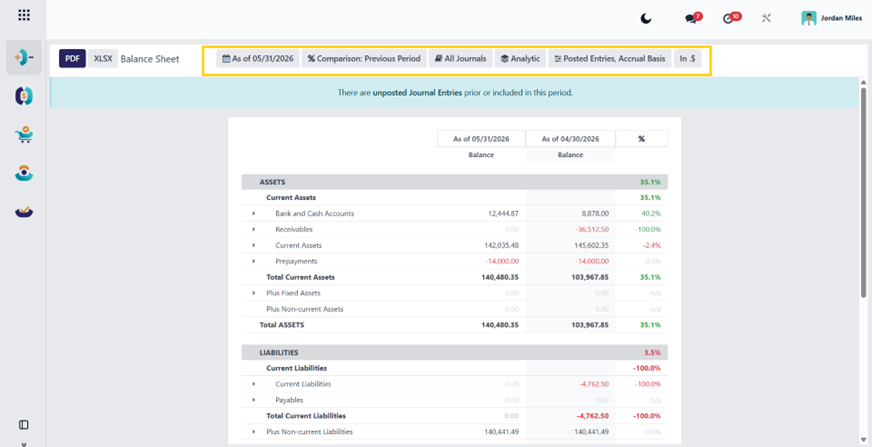
7.2.B Profit and Loss (P&L)
Menu: Accounting Hub → Reports → Financial Statements → Profit and Loss
Action: account_reports.action_account_report_pl
Purpose
Measures business performance during a period:
- Revenue.
- Cost of sales / COGS.
- Operating expenses.
- Net profit.
When to use
- Monthly management pack.
- Budget vs actual comparison.
- Profitability analysis by department (with analytics).
How to run it
- Set Date Range (start/end).
- Target moves: Posted.
- Enable Comparison:
- previous month.
- same period previous year.
- Optional: filter by analytic account (department/project).
How to interpret
- Validate revenue: Compare to Sales Analysis and Invoice Analysis (Customer Hub → Reports).
- Validate COGS: Should follow the inventory valuation and product cost method.
- Validate major expense categories: Identify spikes: drill down to journal items.
- Validate depreciation: Should match posted depreciation entries.
- Validate deferred revenue/expense impact: Check Deferred Revenue/Expense reports.
Common issues & fixes
Revenue too high/low
Causes:
- invoice dates in the wrong period.
- drafts included.
- Credit memos posted in the wrong month.
COGS unusual
Causes:
- inventory adjustments.
- Cost method issues.
- landed cost timing.
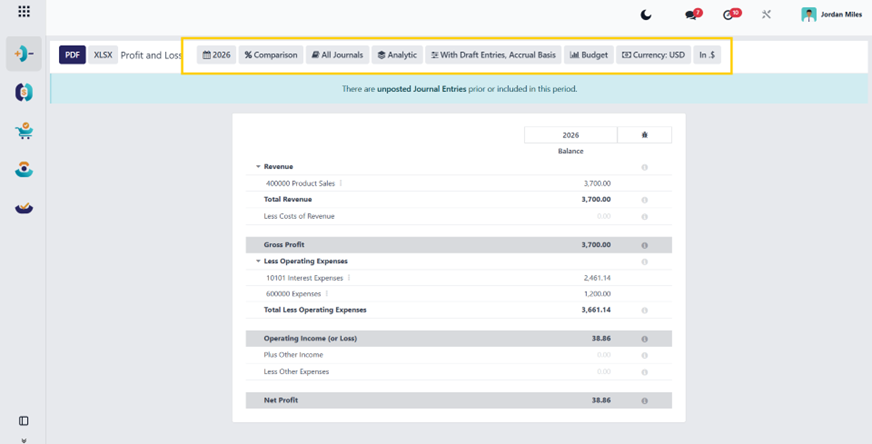
7.2.C Statement of Cash Flows
Menu: Accounting Hub → Reports → Financial Statements → Statement of Cash Flows
Action: account_reports.action_account_report_cs
Purpose
Explains how cash moved during a period (not profit):
- Operating activities.
- Investing activities.
- Financing activities.
When to use
- CFO cash planning.
- External reporting.
- Month-end reconciliation.
How to run it correctly
- Run only after bank reconciliation is updated.
- Use posted-only.
- Use a consistent date range (same as P&L).
Interpretation tips
If operating cash flow looks wrong:
- Check receivable/payable movement.
- Check bank reconciliation completeness.
If investing/financing is misclassified:
- Check account mapping and journal entries classification.
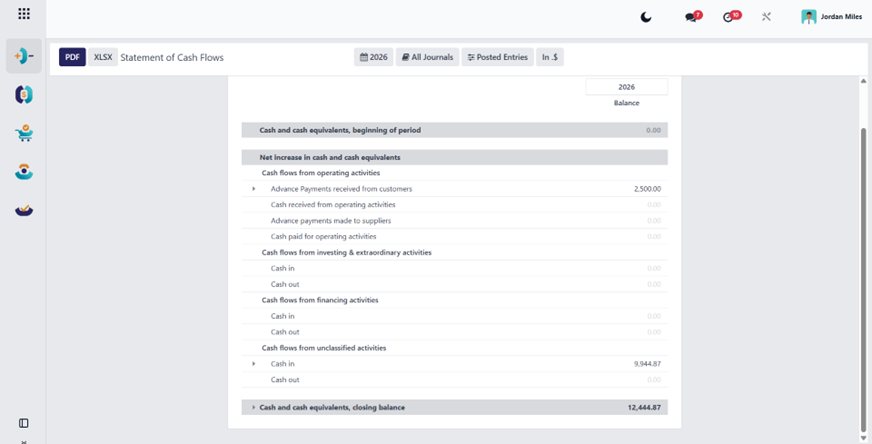
7.2.D Tax Return
Menu: Accounting Hub → Reports → Financial Statements → Tax Return
Action: account_reports.action_account_report_gt
Purpose
Summarizes tax due/credit for the tax authority filing period.
Before running (mandatory checks)
- Taxes configured correctly (tax grids/tax groups).
- Tax periodicity and tax return journal are configured in Settings.
- All invoices/bills posted in the period.
- Bank reconciliation is not required for tax, but posting completeness is required.
How to run it
- Set tax period (month/quarter/year).
- Posted-only.
- Export report for filing pack.
- Post tax closing entry if your policy requires.
Common issues
- Missing tax amounts → taxes not applied to documents.
- Wrong tax totals → incorrect tax grids, fiscal positions, or tax mapping.
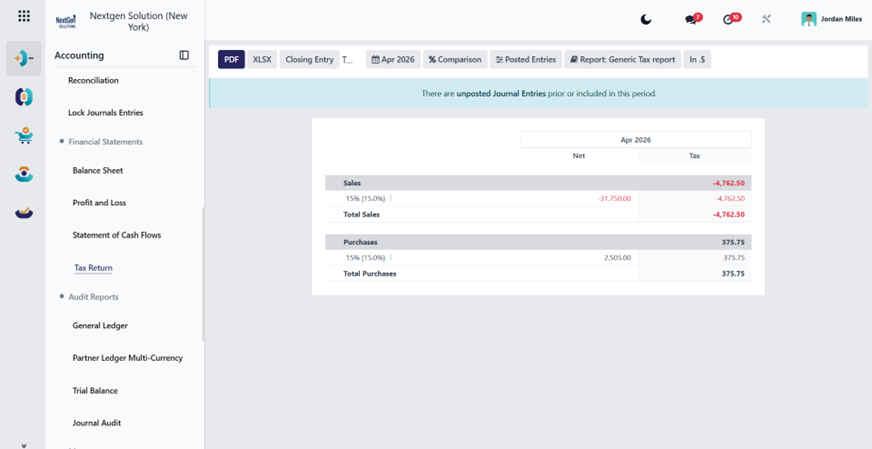
7.3 Audit Reports
7.3.A General Ledger
Menu: Accounting Hub → Reports → Audit Reports → General Ledger
Action: account_reports.action_account_report_general_ledger
Purpose
Audit trail by account with detailed journal items.
When to use
- Audit requests.
- Month-end validation.
- Investigations.
How to run
- Select date range.
- Posted-only.
- Filter account(s) if investigating.
- Drill down to journal items.
How to interpret
Look for unusual accounts with:
- large manual entries.
- entries without reference.
- entries posted after lock date (should not happen).
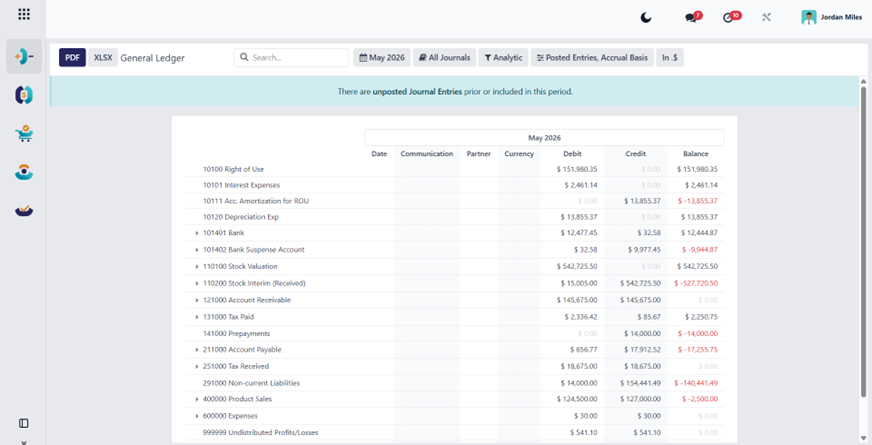
7.3.B Partner Ledger (Standard)
Menu: standard path exists in Customer/Vendor hubs
Purpose
Partner-based ledger (customer/vendor) supporting reconciliation.
Controls
Receivable/payable accounts must always have a partner on journal items.
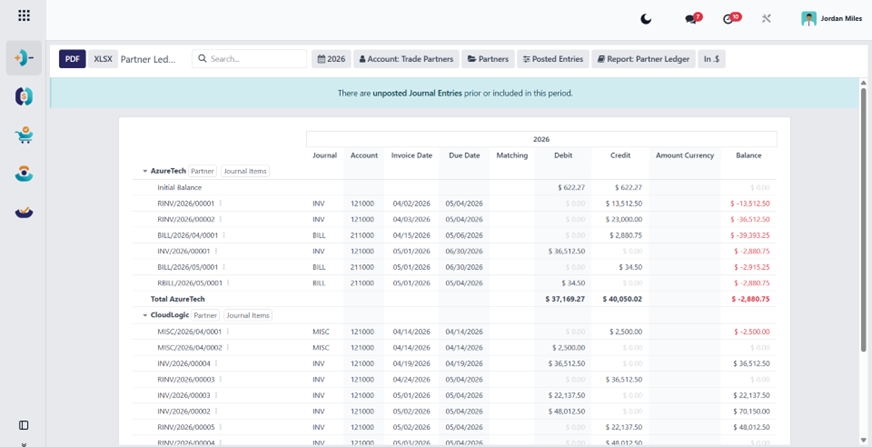
7.3.C Partner Ledger Multi-Currency
Menu: Accounting Hub → Reports → Audit Reports → Partner Ledger Multi-Currency
Action: HuoPuo_partner_ledger_multi_currency.action_account_report_partner_ledger_multi_currency_custom
Purpose
AR/AP position with currency visibility:
- open items by currency.
- foreign exposure reporting.
- audit for foreign transactions.
How to use
- Run by period end date.
- Filter partners.
- Compare amounts in:
- transaction currency.
- company currency.
Typical uses
- month-end FX exposure evaluation.
- supporting unrealized gains/losses.
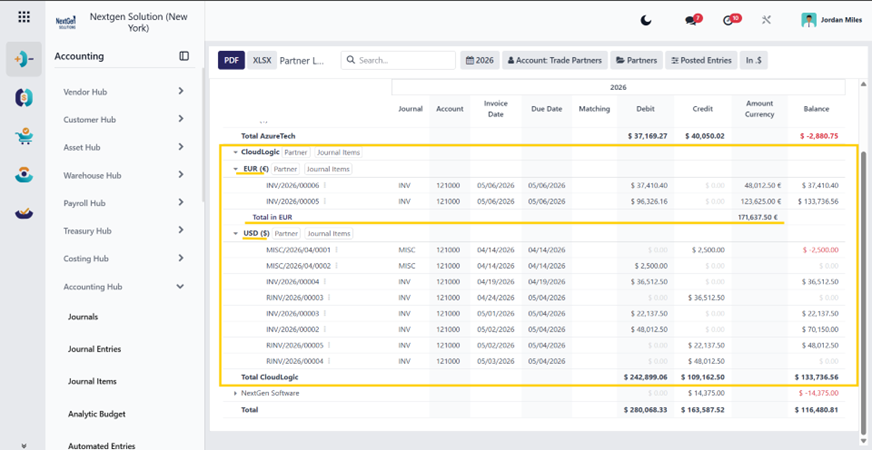
7.3.D Trial Balance
Menu: Accounting Hub → Reports → Audit Reports → Trial Balance
Action: account_reports.action_account_report_coa
Purpose
Integrity check and starting point for reporting:
- debit/credit totals per account.
- period movement.
How to run
- Date range.
- Posted-only.
- Export as audit pack summary.
How to interpret
Use it to find unexpected balances in:
- suspense accounts.
- clearing accounts.
- stock interim accounts.
- tax accounts.
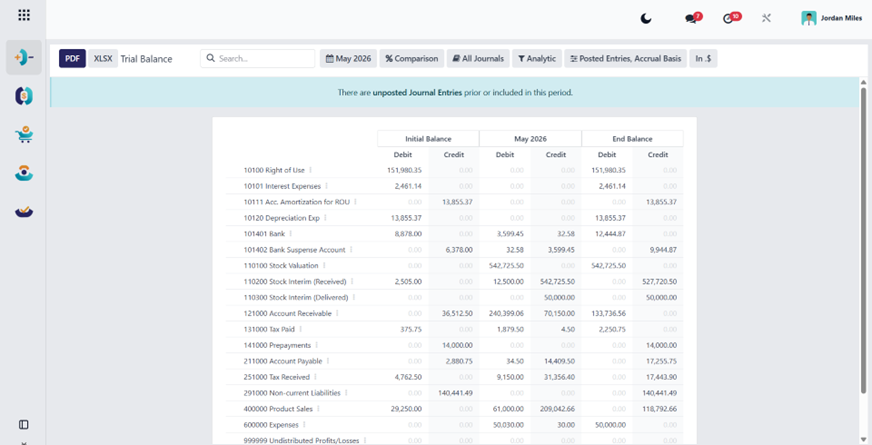
7.3.E Journal Audit
Menu: Accounting Hub → Reports → Audit Reports → Journal Audit
Action: account_reports.action_account_report_ja
Purpose
Journal-based transaction listing for audit sampling.
How to use
- Filter by journal (sales/purchase/bank).
- Export for external auditors.
- Spot-check sequences and references.
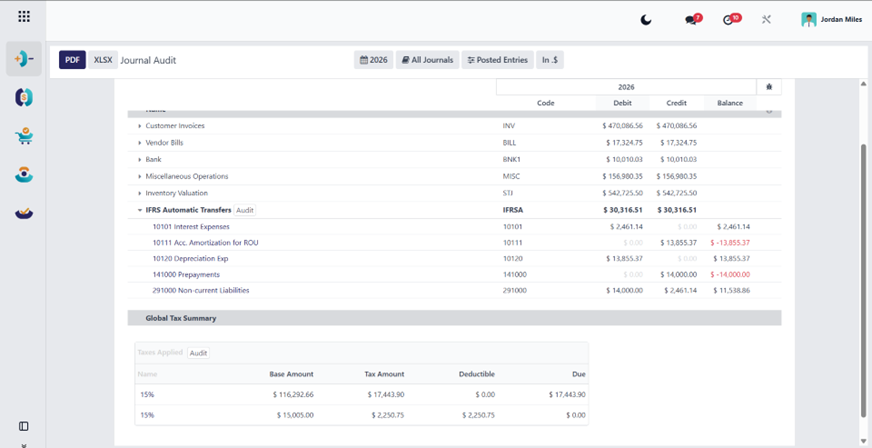
7.4 Management Reports
7.4.A Executive Summary
Menu: Accounting Hub → Reports → Management → Executive Summary
Purpose
CFO snapshot dashboard with business KPIs.
How to use
- Use as “first page” of management pack.
- Drill down if a KPI is unusual (AR/AP spikes, cash drops, margin changes).
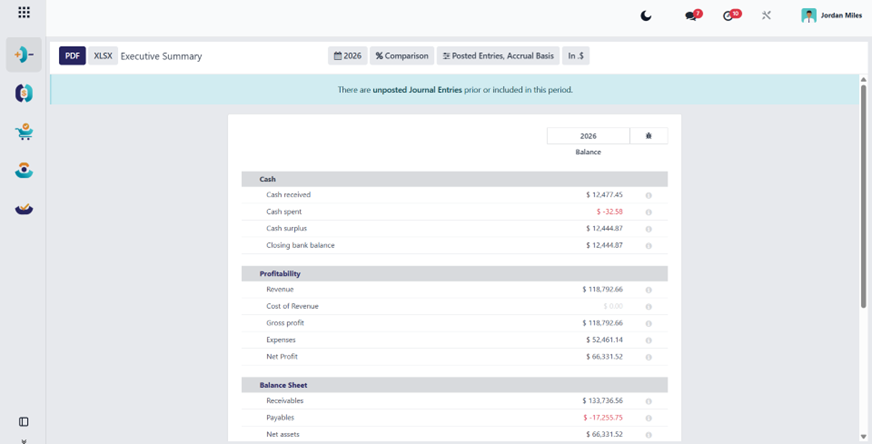
7.4.B Unrealized Currency Gains/Losses
Menu: Accounting Hub → Reports → Management → Unrealized Currency Gains/Losses
Action: account_reports.action_account_report_multicurrency_revaluation
Purpose
Shows FX revaluation impact on open foreign currency items at period end.
How to run (month-end FX process)
- Ensure currency rates are updated.
- Run report “as of period end.”
- Validate high-impact partners.
- Post adjustment entry if your policy requires revaluation posting.
How to interpret
Large unrealized variance often indicates:
- high open balances in foreign currency.
- rate changes.
- incorrect currency rates.
7.4.C Deferred Reports
7.4.C1 Deferred Expenses
Menu: Accounting Hub → Reports → Management → Deferred Expense
Purpose
Tracks expense amounts that should be recognized over time instead of fully in one period.
Workflow concept
Bill posted → deferral schedule created → periodic recognition entries posted.
7.4.C2 Deferred Revenue
Menu: Accounting Hub → Reports → Management → Deferred Revenue
Purpose
Tracks revenue recognized over time (subscriptions, service contracts).
Workflow concept
Invoice posted → deferral schedule created → periodic recognition entries posted.
7.4.D Disallowed Expenses
Menu: Accounting Hub → Reports → Management → Disallowed Expenses
Purpose
Separates expenses not allowed for tax deduction (policy-driven).
How to use
- Ensure expense accounts are properly classified.
- Use for tax compliance and audit.
7.4.E Budget Report
Menu: Accounting Hub → Reports → Management → Budget Report (budget.report)
Purpose
Budget vs actual monitoring.
How to run
- Select fiscal period.
- Filter by analytic dimensions (if your budget is analytic-based).
- Export and review variance.
7.4.F Product Margin
Menu: Accounting Hub → Reports → Management → Product Margin
Purpose
Product-level profitability analysis:
- sale price vs cost.
- margin by product/category.
Finance caveats
Accuracy depends on:
- cost method (standard/FIFO/AVCO).
- landed cost posting.
- correct product category accounting setup.
7.4.G Accounting Reports Multi-Currencies
Goal
Enable users to open any Accounting report (Balance Sheet, P&L, Cash Flow, Tax Return, General Ledger, Trial Balance, Journal Audit, Partner Ledger, AR/AP Aging, etc.) and view/export it in a currency different from the company currency, using your custom module account_report_multi_currency.
Important concept in HuoPuo
Reports are normally based on the company currency, even though most systems store foreign currency amounts alongside company-currency amounts for transactions (especially bank foreign currency transactions).
HuoPuo adds a Currency selector to account reports, so the report can be recalculated in a chosen currency.
Configuration prerequisites (HuoPuo menus)
Step 1 — Enable multi-currencies + exchange difference settings
Menu: Configuration Hub → Settings
In HuoPuo, to work with multiple currencies, you must enable multiple currencies and set:
- Journal for exchange difference entries.
- Gain Account.
- Loss Account.
These settings are mandatory for correct FX handling, especially when paying foreign invoices and for revaluation.
Step 2 — Activate needed currencies + maintain rates
HuoPuo creates currencies, but they may be inactive. Activate currencies either via the multi-currency shortcut or via the currencies list.
Menu: Configuration Hub → Currencies
Then configure rates:
- Either enable Automatic Currency Rates (service + interval).
- Or update manually (“Update now”).
Step 3 — Ensure users have multi-Currency permission
Only users with multi-currency access should be able to use this feature (your module also checks multi-currency access).
Menu: Settings → Users → (user) → Access Rights
Ensure the user has rights that include multi-currency capability.
Enable currency switching per report (this is the key module part)
Where to enable it
Menu: Configuration Hub → Accounting Reports
(Open any report record, e.g., Balance Sheet, P&L, General Ledger…)
Search & Activate:
- Currencies (checkbox) = enables currency dropdown for this report.
- Conversion Date (required when enabled).
Conversion Date options (how amounts are converted)
Choose one:
Record Date (Invoice/Accounting Date)
Use historical rates based on each transaction’s own date (invoice date/accounting date).
Best for: accurate “as-posted” accounting view.
Report Date
Convert everything using the rate at the report’s Date To (period end).
Best for: management reporting “as of date” comparisons.
How users run ANY report in a different currency (step-by-step)
Step A — Open the report from your hub menu
Examples:
- Accounting Hub → Reports → Financial Statements → Balance Sheet.
- Accounting Hub → Reports → Audit Reports → General Ledger.
- Vendor Hub → Reports → Accounts Payable Aging.
- Customer Hub → Reports → Accounts Receivable Aging.
- Accounting Hub → Reports → Management → Deferred Revenue, etc.
Step B — Select the report currency
When the feature is enabled (Section 3), the report toolbar will contain a Currency selector.
- Choose Currency = USD / EUR / SAR / …
- Confirm the report date range.
- Ensure Posted only if you are producing official outputs.
Step C — Export
Export PDF/XLSX after selecting the currency.
What reports can be converted (practical guidance)
These work best (recommended) and ideal for multi-currency presentations:
Use Record Date for movement-based reports and transaction-level analysis. Use Report Date for balance-based reports and period-end position review.
The simplest classification.
Use Record Date for:
- Profit & Loss.
- Cash Flow.
- General Ledger.
- Journal Audit.
- Partner Ledger when the purpose is transaction-history analysis.
Use Report Date for:
- Balance Sheet.
- Executive Summary.
- Trial Balance.
- Aged Receivable / Aged Payable.
- Deferred Revenue / Deferred Expense.
- Partner Ledger when the purpose is outstanding balance review.
You can view it in another currency for internal analysis.
But filing is typically required in statutory currency, and HuoPuo’s tax logic/reporting is designed around correct tax setup and reporting in base currency.
Notes and limitations users should understand
A) “Amount Currency” column behavior
Your module intentionally avoids converting columns that represent the original transaction currency (e.g., “amount_currency”), so users can still see the original currency while other totals are converted.
B) FX rates must exist up to the report date
If rates are missing up to the report end date, conversion may fall back or look wrong. Always update rates before month-end reporting.
C) Bank accounts in foreign currency
HuoPuo stores both company-currency debit/credit and bank-currency debit/credit for foreign currency bank accounts. This is why bank/cash reporting and FX handling depend heavily on proper configuration.
“Quick Setup Checklist” for your implementers
- Configuration Hub → Settings:
- Enable Multi-Currencies.
- Set Exchange Difference Journal + Gain/Loss accounts.
- Configuration Hub → Currencies:
- Activate required currencies.
- Enable automatic rates or update rates manually.
- Ensure finance users have multi-currency access.
- Configuration Hub → Accounting Reports:
- For each report you want: enable Currencies + set Conversion Date.
- Users open reports → choose Currency dropdown → export.
8. Best Practices
8.1 Posting Discipline
- Keep journals, taxes, and fiscal positions controlled and reviewed.
- Do not allow users to post accounting entries without understanding their reporting impact.
- Use clear journal structures so entries remain easy to review and audit.
- Avoid unnecessary manual journal entries when a controlled workflow already exists.
8.2 Reconciliation Discipline
- Reconcile bank transactions regularly, not only at period end.
- Review outstanding balances and unmatched items before they accumulate.
- Ensure payments, receipts, and transfers are linked correctly to their source transactions.
- Use reconciliation as a control activity, not only as a technical step.
8.3 Period Closing Discipline
- Use lock dates and period close controls consistently.
- Complete daily and weekly controls before month-end to reduce closing pressure.
- Review journals, open balances, and unusual entries before final closure.
- Do not leave period-end validation until the last day of closing.
8.4 Validation Before Closing
- Validate posted entries before relying on reports.
- Review account balances, reconciliation results, and tax postings before finalizing the period.
- Confirm that supporting documents and accounting logic are complete before lock dates are applied.
- Ensure the finance team follows a clear review chain before final reporting.
8.5 Activation of Advanced Features
- Separate daily operational discipline from configuration changes.
- Activate advanced features only when there is a real business need.
- Use specialized sections such as assets, costing, payroll visibility, and IFRS 16 only with proper governance.
- Make sure users understand the accounting effect of each advanced feature before using it in live operations.
8.6 Report Review Discipline
- Train users to understand the effect of posting on reporting.
- Review financial statements, audit reports, and management reports regularly, not only at period close.
- Confirm that users know which report to use for each purpose.
- Treat reporting as a control tool, not only as an output.
9. Common Issues and Practical Use Cases
Case: Reconciliation does not match the bank movement.
Cause: payment, statement line, or outstanding account logic is incorrect.
Solution: review the payment journal setup, the imported bank line, and the reconciliation model before reprocessing.
Case: Reports do not reflect the expected balances.
Cause: entries may be posted to the wrong period, journal, or account.
Solution: review posting dates, journals, and account mapping before final closing.
Case: Month-end takes too long, and finance loses control.
Cause: operations were not closed gradually, and validations were postponed.
Solution: follow daily and weekly playbooks and enforce lock-date discipline.
Case: Audit support is difficult to prepare.
Cause: weak traceability or inconsistent document posting.
Solution: keep reconciliations, supporting documents, and reporting reviews updated continuously.
Case: Business teams ask why accounting is needed for operational workflows.
Cause: The accounting impact of operational transactions is not understood.
Solution: explain that sales, purchases, inventory, payroll, assets, and treasury all create financial effects that accounting controls and reports.
10. Limitations of the Accounting Module
While HuoPuo Accounting is a powerful financial control environment, users should understand that its effectiveness depends on correct setup, disciplined usage, and proper integration with related operational modules.
10.1 Dependency on Setup Quality
Strong accounting results depend heavily on a disciplined setup and controlled posting behavior.
If journals, taxes, fiscal positions, accounts, currencies, or payment settings are configured incorrectly, the impact will appear throughout the system in postings, reconciliations, and reports.
10.2 Dependency on User Discipline
The module relies heavily on user discipline in daily work.
If users:
- post entries incorrectly.
- skip reconciliations.
- delay validations.
- or fail to follow close procedures.
Then, the report quality and financial control will decline, even if the system itself is configured correctly.
10.3 Advanced Features Require Governance
Specialized areas such as IFRS 16, multi-currency reporting, advanced payment providers, assets, and costing require configuration maturity and accounting governance.
These features are powerful, but they should not be activated or used without:
- clear business need.
- trained users.
- and controlled accounting ownership.
10.4 Dependence on Cross-Module Integration
Cross-functional accuracy depends on proper integration with operational modules such as:
- Sales.
- Purchase.
- Inventory.
- Payroll.
- Assets.
- Treasury.
If those operational modules are used incorrectly, accounting outputs will also be affected.
This means accounting quality is partly dependent on disciplines outside the accounting team as well.
10.5 Reporting Depth for Executives
Standard accounting and management reports are available, but advanced executive reporting may still require:
- external BI tools.
- custom dashboards.
- or specialized reporting layers.
This is especially important for organizations that require complex KPI visualization or board-level financial analytics.
10.6 Complexity in Specialized Accounting Areas
Certain sections of the module are not simple transactional workflows.
Areas such as:
- lease accounting.
- multi-currency analysis.
- advanced treasury controls.
- and costing structures.
require deeper accounting knowledge and should not be treated as casual user functions.
10.7 Not a Substitute for Accounting Governance
The module provides structure and controls, but it does not replace:
- accounting policy.
- financial review.
- approval discipline.
- or management oversight.
In other words, the system supports good accounting practice, but it cannot compensate for weak financial governance.
11. Specialized Sections
The following specialized content is preserved and intentionally grouped here to keep the main manual structure clean.
11.1 IFRS 16
11.1.A IFRS 16 Lease Accounting
enables IFRS 16 lease accounting inside HuoPuo by providing:
All IFRS 16 actions are under:
Accounting → Assets Hub → IFRS 16 Lease Accounting
Select the Journal where IFRS 16 entries will be posted.
(recommended: a dedicated journal like “IFRS16 / Lease Journal”)
11.1.B Core Workflow (Lease Asset Lifecycle)
11.1.B1 Create a Lease Asset (Master Record)
IFRS 16 policy reminder
This module assumes ROU and Liability start from the PV of lease payments. If you need to include initial direct costs, restoration provisions, etc., that is usually a customization or manual adjustment entry.
11.1.B2 Confirm Lease (Initial Recognition Entry)
What Confirm does
Creates and posts the initial IFRS 16 journal entry dated on the Start Date:
11.1.B3 Periodic JV (Month-End IFRS 16 Entries)
Menu: Accounting → Assets Hub → IFRS 16 Lease Accounting → Periodic JV
Create period entries typically required for IFRS 16:
11.2 Integration With Other Applications and Platforms
11.2.1 Peppol e-Invoicing Attachments
Audience
AR teams, e-invoicing compliance officers, and accountants issuing invoices/credit notes to Peppol recipients.
Problems/needs solved
Adds supporting-document attachments to Peppol BIS Billing 3.0 e-invoices (embedded binary docs/references), with governance controls (allowed files, max size, what gets included).
How to use (clicking)
- Open Customer Invoice / Credit Note → Send & Print / Send.
- In the Send wizard, enable Peppol BIS Billing 3.0 and select which invoice attachments to include (from invoice attachments).
- On attachments, an include flag is managed to indicate “available for Peppol”.
Configuration needed
- Company’s e-invoicing/Peppol setup (Access Point/endpoints), depending on your platform setup.
- In Settings, set Peppol attachment maximum file size and follow the allowed formats policy.
- Attachments must be acceptable per Peppol BIS Billing 3.0 rules (embedded Base64 objects or references).
How does it ease work?
Eliminates manual portal uploads of supporting documents; enforces size/selection controls; reduces rejection risk by embedding docs using the standard UBL “AdditionalDocumentReference/EmbeddedDocumentBinaryObject” approach.
Comparison snapshot
- Odoo: supports e-invoicing/EDI flows, including Peppol in supported localizations; attachments handling varies by edition/localization.
- ERPNext: e-invoice is often country-specific; Peppol is typically via add-ons rather than core.
- QuickBooks / Digits: focus on invoice emailing/PDF + integrations; structured Peppol attachment support is not a common native feature.
- Xero: supports eInvoicing/Peppol in supported regions; attachment rules depend on the network/market.
- SAP S/4HANA: strong e-invoicing frameworks (country packages/DRC/eDocument) typically handle structured formats + attachments based on mandate.
11.2.2 N-Genius Online Payment Provider
Audience
E-commerce admins, finance teams, payment operations, and IT/integration engineers (especially GCC/UAE).
Problems/needs solved
Adds Network International N-Genius Online as a payment provider: token/auth, hosted payment page redirection, transaction status handling, refunds, and webhook processing.
How to use (clicking)
- Go to Payment Providers → create/enable N-Genius.
- Enter required credentials (API key, outlet reference, webhook secret if used).
- Publish provider for checkout.
- Customers select it at checkout → redirect to hosted page → return updated transaction.
Configuration needed
- N-Genius credentials + environment (test/live).
- Decide capture mode (authorize vs purchase) according to your operations.
- Webhook endpoints and secrets if you rely on server-to-server confirmations.
How does it ease work?
Speeds up gateway enablement; centralizes payment audit trail; supports automation (status sync + refunds) using the gateway API model.
Comparison snapshot
- Odoo: payment provider framework supports multiple gateways; specific gateways vary by edition/add-ons.
- ERPNext: supports payment gateways via integrations; specific providers vary by app.
- QuickBooks / Xero / Digits: commonly integrate with payments, but gateway choice is ecosystem-dependent; enterprise gateway features vary.
- SAP: payment acceptance is typically via PSP integrations, SAP Commerce/Payments partners, or bank/payment hubs.
11.2.3 XRechnung Leitweg-ID Injection
Audience
German public-sector invoicing teams; e-invoicing admins for B2G.
Problems/needs solved
Ensures XRechnung exports populate Buyer Reference (BT-10) with the recipient’s Leitweg-ID (mandatory for federal portals like ZRE/OZG-RE).
How to use (clicking)
- Maintain the recipient’s Leitweg-ID on the customer record (as configured in your data model).
- When generating/sending an XRechnung, the export logic injects the Buyer Reference automatically.
Configuration needed
- Correctly store Leitweg-ID for B2G customers.
- Ensure XRechnung/EN16931 export is enabled in your e-invoicing setup.
How does it ease work?
Reduces rejections by portals; avoids manual XML edits; makes buyer reference consistent across all B2G invoices.
11.2.4 queue_job — Background Job Queue & Monitoring
Audience
System admins, integrators, developers, and operations teams managing heavy automation.
Problems/needs solved
Provides an asynchronous job queue: delay jobs, retry/fail handling, channels/priority, and monitoring UI for long tasks (EDI sends, imports, data sync, heavy computations).
How to use (clicking)
- Settings → Technical → Queue Jobs / Channels / Functions.
- Monitor pending/failed jobs, requeue, or cancel via wizards.
Configuration needed
- Job channels, workers/executors, retry policy, and operational monitoring routines.
- Decide which processes should be async vs synchronous.
How does it ease work?
Improves reliability and UX (no UI blocking); enables controlled retries; creates operational visibility for integrations.
11.2.5 QuickBooks Online Synchronization (HuoPuo ↔ QBO)
Audience
Accountants, AP/AR clerks, finance managers/controllers, integration admins, implementation partners.
Problems/needs solved
- Eliminates double-entry by synchronizing operational accounting objects from HuoPuo into QuickBooks Online (and optionally pulling QBO master data into HuoPuo).
- Supports “ERP as operational source / QBO as financial reporting source” patterns for SMB and mid-market clients who insist on QBO.
- Standardizes integration governance: instance setup, mapping, sync runs, logging, and scheduled jobs.
How to use (clicking)
Key navigation from Accounting:
- Configuration → QuickBooks Online Instances: create an instance and connect (OAuth).
- Configuration → QuickBooks Online Mapping:
- Chart of Accounts / Tax / Payment Method / Payment Term / Department mappings.
- QuickBooks Online menu:
- General: Import Customers, Export Customers, Import Vendors, Export Vendors, Import/Export Products, Import/Export Invoices, Import/Export Bills, Import/Export Payments, Export Journal Entries, Export Inventory Adjustment…
- Advanced: Import Accounts, Import Taxes, Import Payment Methods, Import Payment Terms, Import Departments, Import Tax Codes…
- Logs → QuickBooks Log / QuickBooks History: review sync outcomes, errors, and what was created/updated.
Configuration needed
- Intuit developer app + OAuth 2.0: client credentials + redirect URIs, then authorize and store tokens/realmId. (QBO OAuth flow and scopes are standard Intuit requirements.)
- HuoPuo-side accounting prerequisites:
- journals, default accounts, taxes, payment methods, payment terms (and mapping rules).
- Sync governance:
- enable cron jobs (if desired), decide “import vs export” per object, set company-level toggles for what to sync.
How does it ease work?
- Operational posting stays in HuoPuo, while QBO gets clean replicated artifacts (customers/vendors/products, invoices/bills, payments, journal entries), reducing reconciliation friction.
- Built-in history/logging enables implementers to troubleshoot integration runs without deep technical access.
- Cron-based scheduling supports “near-real-time” or daily batch updates.
Comparison snapshot (concept-level)
- QuickBooks Online (native): strong reporting + bank-centric workflows; integrations rely on Intuit APIs and OAuth/scopes.
- Odoo (reference): typically uses marketplace connectors for QBO import/export and cron scheduling (vendor-provided apps are common).
- ERPNext: often integrated via REST APIs/custom middleware rather than “official QBO connector”.
- SAP Business One / SAP S/4HANA: integration is usually handled via SAP integration tooling/middleware patterns (not “QBO-native”), emphasizing governed interfaces and monitoring. (B1 Integration Framework is a common route.)
10.7 Detailed comparison tables (focused on these two modules’ domains)
A) QuickBooks Online synchronization capability (integration angle)
10.8 Cash Forecasting & Liquidity Planning
Audience
CFO/Finance Director, treasurer, finance manager, controllers, budgeting/FP&A analysts.
Problems/needs solved
- Produces a structured rolling cash forecast by time bucket (e.g., weekly/monthly), comparing:
- Forecasted cash vs realized/actual cash.
- Variances and “as-of” positions using accounting lines.
- Helps treasury answer: “What will our bank/cash position look like over the next period if receivables/payables behave as expected?”
How to use (clicking)
- Cash Forecast → Dashboard: high-level liquidity view.
- Cash Forecast → Cash Forecast: manage forecast periods and amounts.
- Cash Forecast → Reporting: forecast reporting and analysis.
- Cash Forecast → Configuration:
- define Cash Forecast Types, groupings, tagging, and calculation logic.
- Wizard-driven operations:
- Create/Update Cash Forecast wizard to generate/update buckets and values.
Configuration needed
- Core accounting baseline:
- cash/bank accounts, AR/AP accounts, journals, and fiscal settings.
- Forecast model setup:
- define forecast types and how each pulls/categorizes transactions (and optional budgeting integration settings).
- Optional automation:
- Enable the cron that updates “actual value” into forecast buckets (cron exists but is disabled by default in XML).
How does it ease work
Standardizes treasury planning into repeatable structures:
- predictable time buckets.
- defined inflow/outflow categories.
- consistent variance reporting.
- Automates the “actuals pull” from posted accounting lines to reduce manual Excel stitching.
Comparison snapshot (cash forecasting market reality)
- QuickBooks Online: provides a Cash Flow Planner for planning items (planner items don’t change the books; availability constraints like multicurrency apply).
- Xero: provides a short-term cash flow projection experience driven by invoices/bills/bank accounts.
- Digits: focuses on real-time financial statements (including cash flow) and dashboards, more “live reporting” than structured treasury forecasting.
- SAP S/4HANA: provides Fiori apps for liquidity forecasting (e.g., “Liquidity Forecast” with typical 90-day trend focus) as part of cash/liquidity management.
- Odoo / ERPNext: commonly strong at cash flow reporting; forecasting depth varies by add-ons and configuration (Odoo has reporting constructs; ERPNext provides cash flow reporting).
10.9 Cash flow forecasting/liquidity planning capability
11.3 Extensive Comparison Table
Notes
- This is a product-level comparison (capabilities “native/typical”). Exact coverage depends on editions/add-ons and localization.
- For cited rows, I reference official/vendor documentation.
| Capability (Finance) | HuoPuo Accounting (your stack) | Odoo | ERPNext | QuickBooks Online | Xero | Digits | SAP Business One | SAP S/4HANA |
|---|---|---|---|---|---|---|---|---|
| Target segment | SMB→mid, scalable modular | SMB→mid | SMB→mid | SMB | SMB→mid | SMB | SMB→mid | Enterprise |
| GL + Journals depth | Full ERP GL | Strong | Strong | Strong SMB | Strong SMB | Strong automation-led | Strong | Enterprise-grade |
| Multi-currency | Strong (multi-currency reports + ledgers) | Strong | Supported | Supported; irreversible once enabled | Strong multi-currency | Focus on live dashboards | Multi-currency referenced in features | Enterprise |
| Bank reconciliation | Imports (CSV/OFX/QIF/CAMT) + matching | Strong | Supported | Strong bank workflows | Strong | Automation-first | “Banking and reconciliation” | Enterprise cash mgmt |
| Batch payments | Native module set | Add-on patterns | Possible | Limited compared to ERP runs | Integrations | Automation | Payment processing | Enterprise treasury |
| ISO20022 payment files | Supported via a module | Add-ons | Possible | Limited | Limited | N/A | Depends | Standard in enterprise treasury |
| SEPA Direct Debit | Supported (account/payment) | Add-ons | Possible | Limited | Integrations | N/A | Depends | Supported in treasury; SEPA rules standard |
| Peppol e-invoicing | Supported via modules | Add-ons | Via integrations | Limited by region | Supports eInvoicing flows (varies by region) | N/A | Depends | Strong via eDocument |
| EN16931 / UBL-CII path | Supported via UBL/CII modules | Add-ons | Possible | Not core | Region-dependent | N/A | Depends | Strong in eDocument |
| German XRechnung routing | Supported (Leitweg-ID module) | Add-ons | Via localization | Limited | Limited | N/A | Depends | Strong for the public sector |
| Intrastat | Supported (goods + services) | Add-ons | Possible | Not typical | Not typical | N/A | Varies | Strong in EU localizations |
| SAF-T export/import | Supported modules | Add-ons | Possible | Not typical | Not typical | N/A | Varies | Common in enterprise localizations |
| External tax engine | AvaTax modules + external tax hooks | Add-ons | Integrations | Integrations | Integrations | N/A | Integrations | Enterprise tax engines |
| Automated extraction/OCR | Invoice extract modules | Add-ons | Add-ons | Add-ons | Add-ons | N/A | Add-ons | Enterprise capture tooling |
| Intercompany automation | Rules module | Add-ons | Possible | Not core | Not core | N/A | Possible | Strong, universal journal concept centralizes finance line items |
| Analytics dimensions | Analytic + auto distribution modules | Strong | Dimensions supported | Limited | Limited | Dashboard-centric | Strong + Excel integration references | Enterprise CO/PA |
| Payment gateways | Many providers + custom + regional | Add-ons | Integrations | Limited | Integrations | N/A | Integrations | Enterprise-grade |
| Cash flow forecasting | Dedicated module | Add-ons | Add-ons | Has cash flow tools | Add-ons | Strong “live” focus | Cash flow tools | Enterprise treasury/planning |
| Auditability | Strong (exports + standardized docs) | Strong | Strong | Strong SMB | Strong SMB | Automation-first | Strong | Highest, enterprise controls |
| Finance architecture | Modular ERP finance | Modular | Modular | App-centric | App-centric | AI-led finance | Integrated SMB ERP | Universal Journal (ACDOCA) + enterprise suite |
Key citations (why they matter)
- QuickBooks multi-currency cannot be turned off once enabled (important for migration/switch decisions).
- Xero multi-currency positioning and capabilities.
- ERPNext multi-currency support is explicit in the docs.
- SAP S/4HANA Universal Journal / ACDOCA concept as a finance core.
- SAP Business One finance feature set (AR/AP, banking/reconciliation, budgets, reporting).
- ISO20022 is a financial messaging standard.
- SEPA Direct Debit is defined by EPC rulebooks.
- Intrastat is the EU intra-trade statistical system.
- SAF-T concept is widely referenced in the tax-compliance digitalization context.
- Avalara AvaTax is an external tax calculation engine (integration context).